Welcome to Star Wars Testbed
Star Wars Testbed is a roleplay sim in Second Life with a game system built in. You make a character, pick a home planet, earn credits, buy things, own property or a business, and fight in turn-based combat. Almost all of it runs through your HUD.
You arrive at the HUB. It is neutral, out-of-character ground. Everything you need to get started is here: character creation, the HUD, the skill tree terminals, the help desk, and the teleporter to the planets.
Want the story so far? Read the Lore Primers.
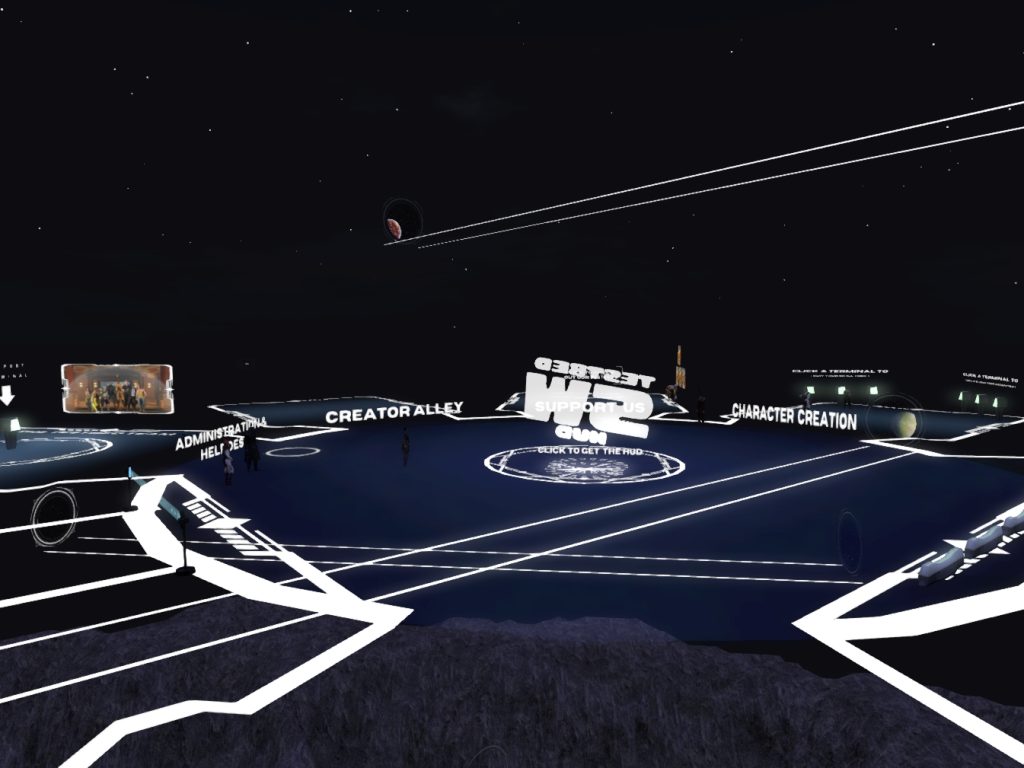
First steps on sim
Do these in order. Each step links to the section that explains it.
Turn on media auto-play. The HUD, the terminals and most of the sim use media prims, which are web pages shown in-world. In your viewer, open Preferences, go to Sound & Media, and make sure media is enabled and Allow Media to auto-play is ticked. If it is off, pages will stay blank.
Take off other media HUDs. Second Life limits how many media prims can play at the same time. Other HUDs that use media, like the Legacy body HUD, use up those slots and can stop our pages from loading. We recommend taking them off while you are on the sim.
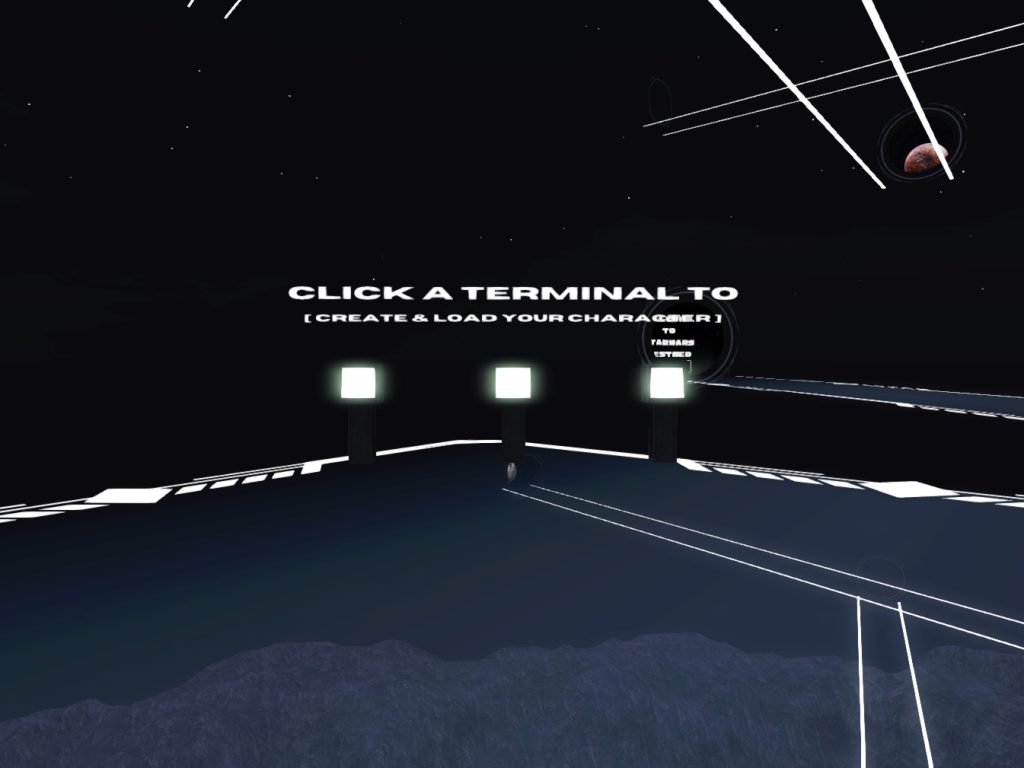
- Make a characterTouch one of the character creation terminals at the HUB. How it works
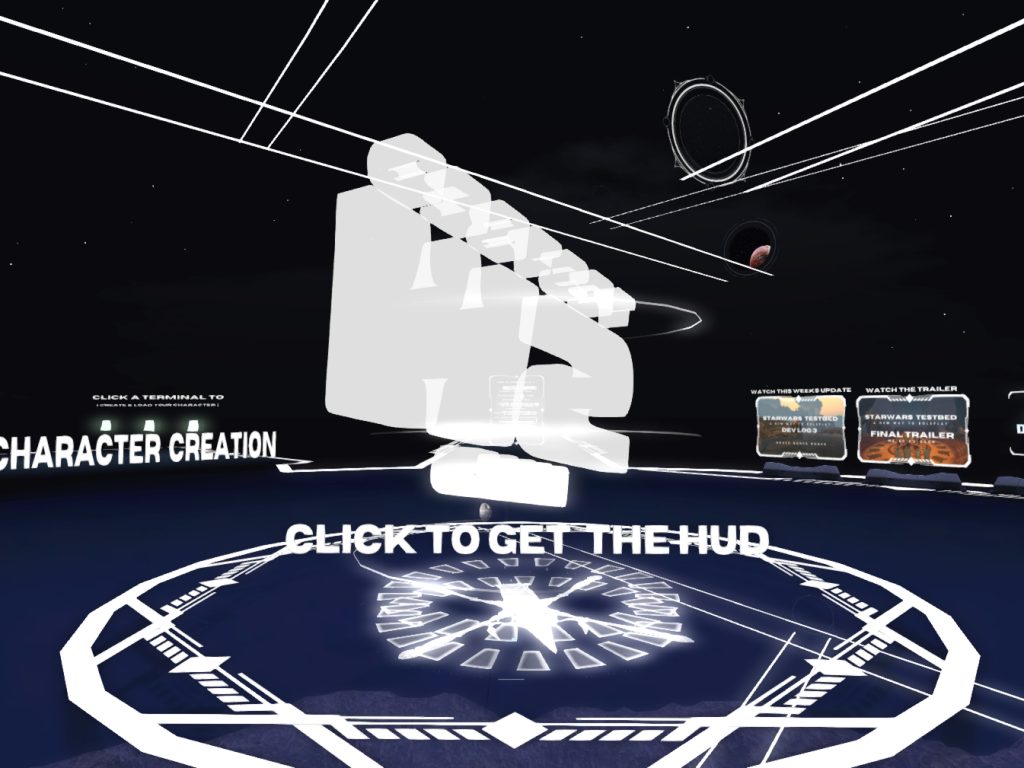
- Get your HUD and RP ToolClick the big SW TESTBED sign that says "Click to get the HUD". Do this after you make your character. The HUD will not work without one.
- Wear bothFind them in your Second Life inventory and wear them. What the HUD buttons do
- Go to your planetWalk through the HUB teleporter. It sends you to the planet you picked. About the planets
- Set up your comm-linkClick the comms button on your HUD and pick a comm signature. Businesses use it to contact you about jobs. Comms
- Find your peopleBrowse the player groups at the XChange and join one. It is the fastest way to find people to RP with. Groups
- Pick a way to earnFind a job, fish, farm, gather, buy a mining contract, or hunt bounties. Compare them
To move the main HUD or the small SWTB logo it shrinks into, you have to edit the linked part, not the whole HUD.
Right-click the HUD and choose Edit. In the Edit window, tick Edit linked, then click the part you want to move and drag it with the arrows. Close the Edit window when you're done.
Create a character
Your character is who you play on the sim. Credits, items, property and XP all belong to the character, not your Second Life account. You can have up to 3 characters.
How to
- Touch a character creation terminal.
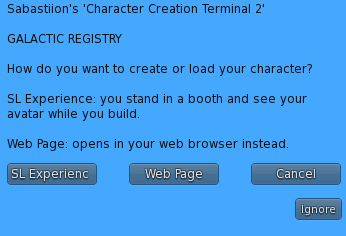
- Pick SL Experience or Web Page. SL Experience puts you in a booth so you can see your avatar while you create your character. Web Page opens the same thing in your browser. If you pick SL Experience, accept the SW:TB Experience when Second Life asks.
- Pick an empty slot.
- If it asks about a faction, pick No, create an independent character unless you are joining one.
- Fill in your name, species, homeworld and starting planet. Names have to be unique on the sim.
- Check the ID preview on the right, then confirm.
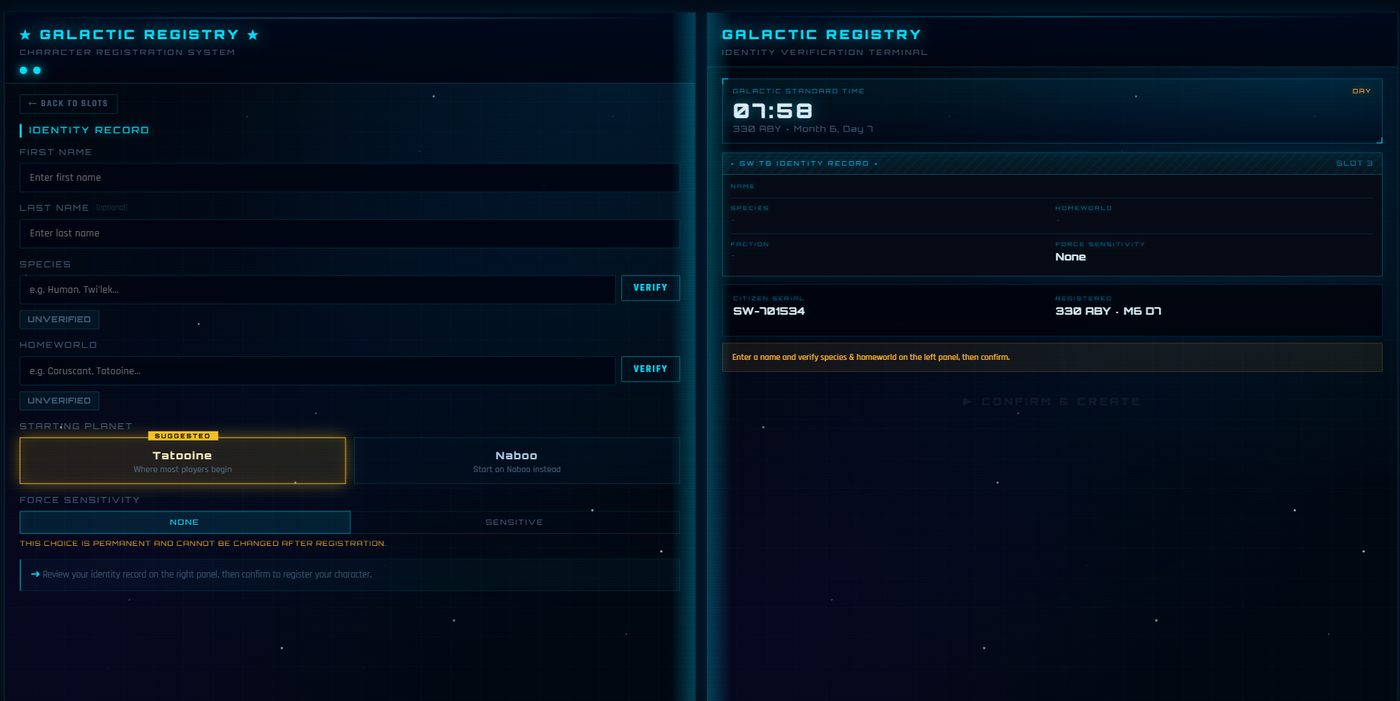
New characters start with 1,500 credits.
Some choices, like Force sensitivity, cannot be changed later. Read each field before you confirm.
More detail
Switching between characters
Touch a character creation terminal and load a different slot. Whatever you do after that counts for the character you loaded. Each character has its own credits, items, XP and home planet.
What is "the Experience"?
It is a Second Life permission that lets the sim teleport you and attach things for you. You only accept it once. If you said no by accident, touch the terminal again and accept, or use Web Page instead.
Your ID
Every character gets a citizen ID with a serial number like SW-123456. You can show it to other players from your HUD. See Comms, trade & ID.
Pick your planet
You pick a starting planet when you make your character: Tatooine or Naboo. Both have the same systems and the same pay. What is different is the setting and the people you will run into.
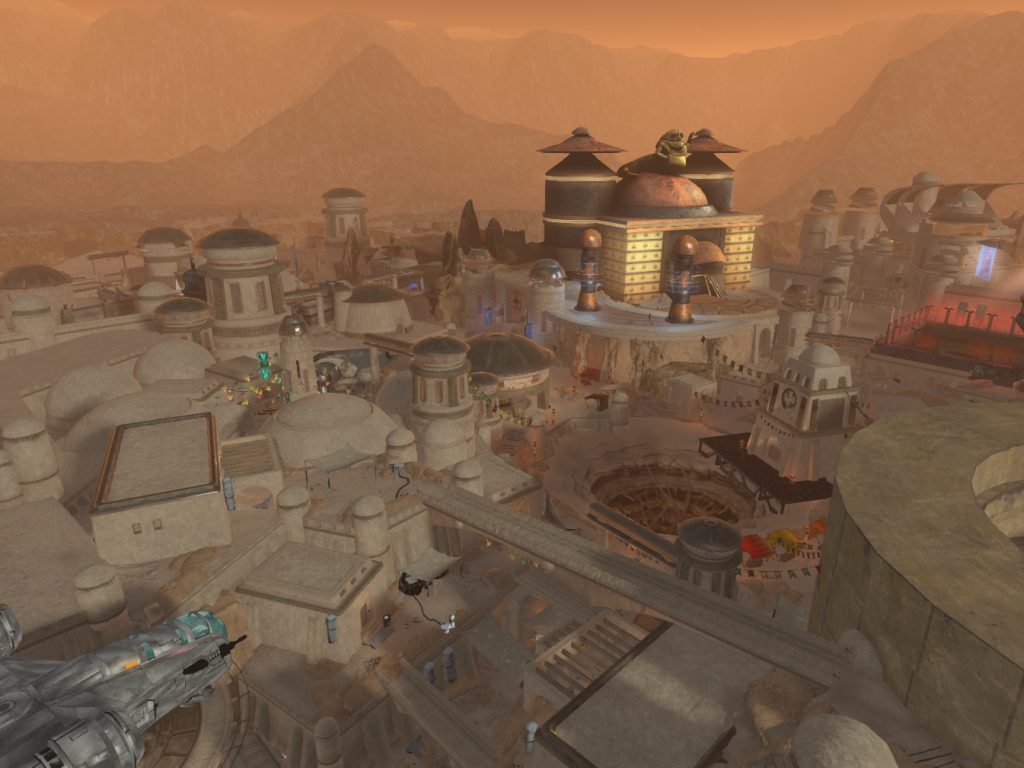
Tatooine Suggested
Desert frontier city built around a sarlacc pit. Lawless, busy, full of bounty hunters, smugglers and people who don't want to be found.
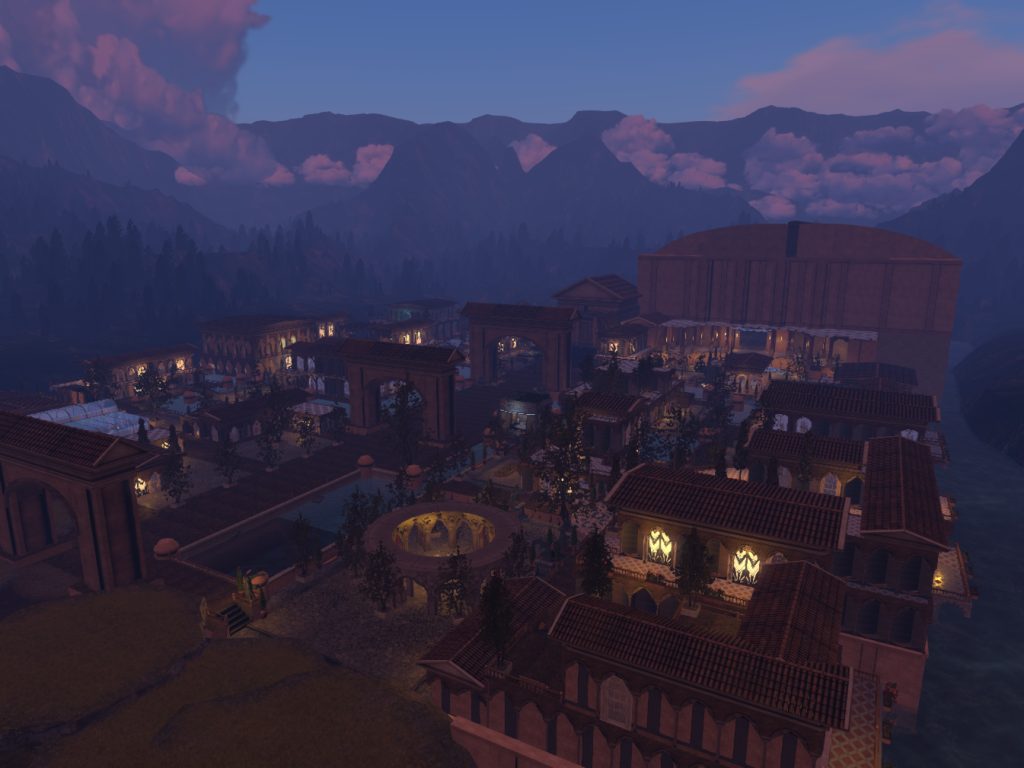
Naboo
Keren City. Green, wealthy and political. Nobles, gamblers and people chasing influence.
Getting there
- Walk into the teleporter at the HUB. It sends you to your character's planet.
- To travel to another planet later, use a transport terminal at the spaceport. Pick a destination and a ticket class, then pay for the ticket.
- To get back to the HUB from anywhere, type /5 hub or pick HUB at a transport terminal. Both are free.
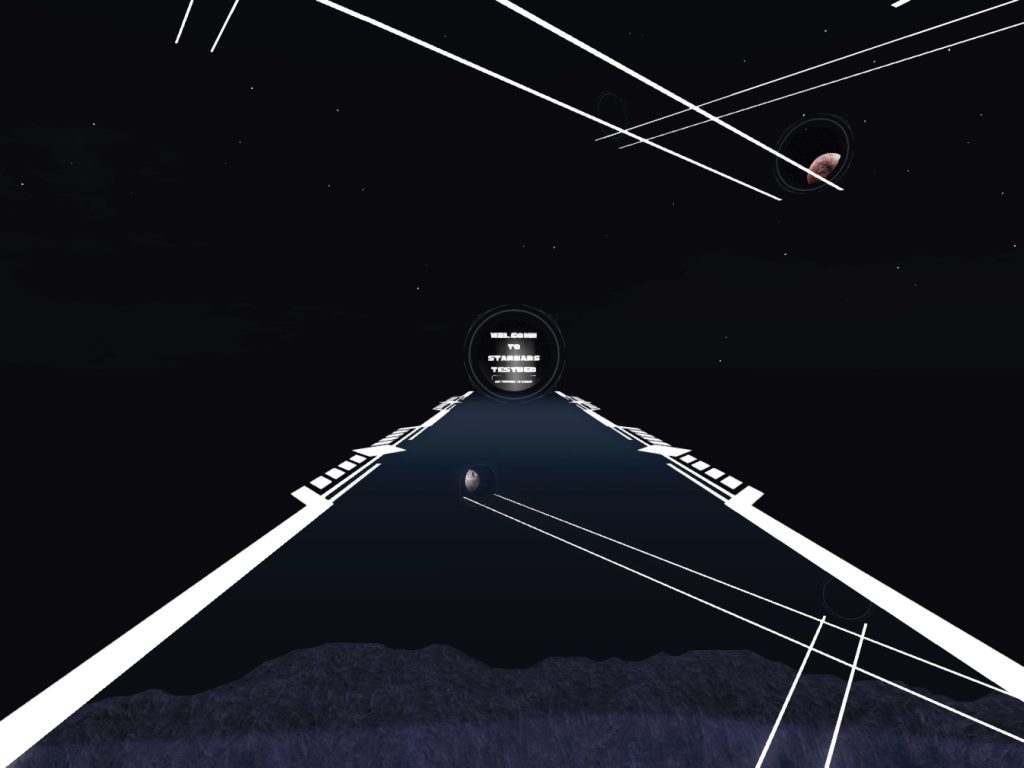
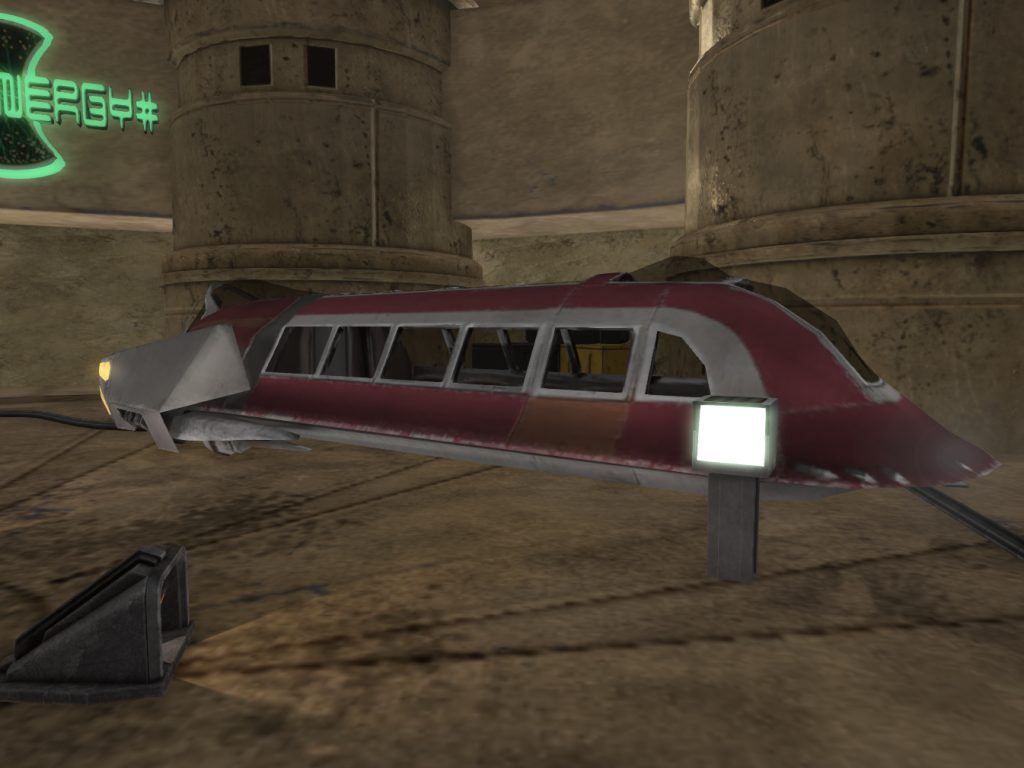
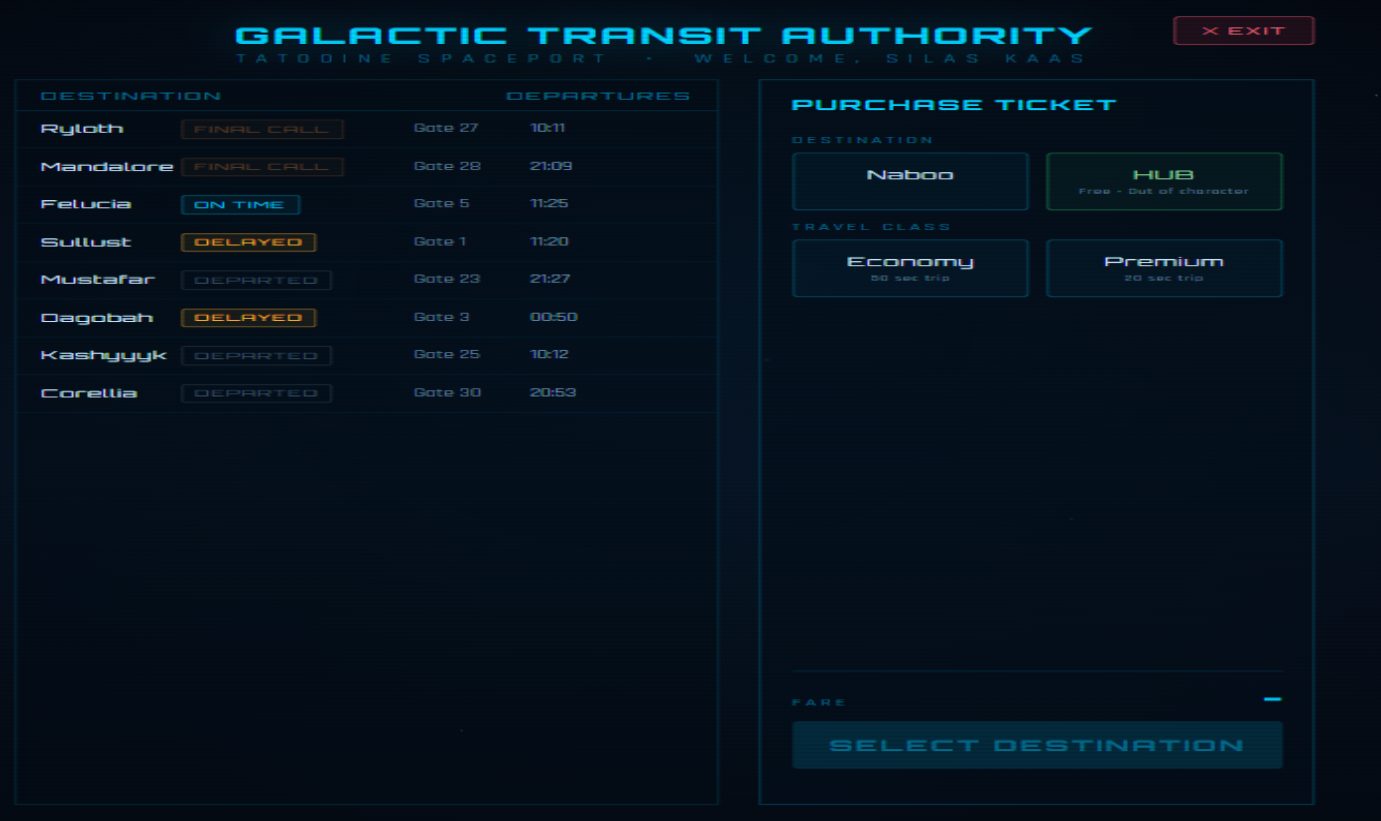
Terminals only work on the planet your character is on. If you end up somewhere else without a ticket, the terminals there will refuse you. Go back to the HUB with /5 hub and use the teleporter.
Your HUD
The HUD is how you use the game. It shows your inventory, profile, bounties and combat, and it has the buttons for gathering and comms.
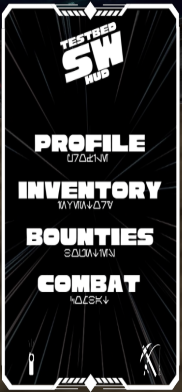
- SW logo
- Minimizes the HUD to a small logo. Click the logo to bring it back.
- Profile
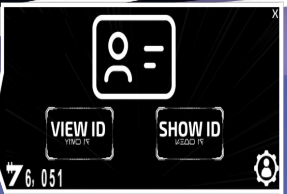
- Your credits, View ID and Show ID. The gear icon in the corner shows what you have equipped.
- Inventory
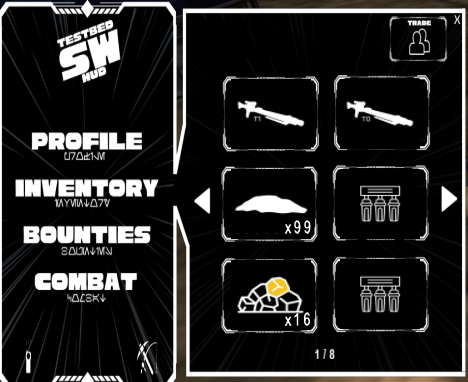
- Your backpack. Click an item to use it, equip it, show it or destroy it.
- Bounties
- Your current bounties.
- Combat
- Your health, and the Open Combat button for fights.
 Comms
Comms- Bottom left. Opens your comm-link. White means nothing new, yellow means unread messages, red means it is open.
 Gather
- Bottom right. Use it at resource nodes and fishing spots.
Inventory
Click Inventory to open your backpack. Use the arrows to change pages. The Trade button in the corner starts a trade with someone near you.
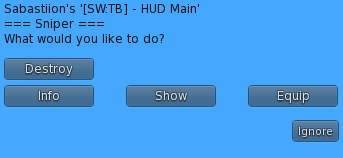
| Item button | What it does |
|---|---|
| Info | Shows what the item is and what it does. |
| Show | Shows the item to people near you. |
| Use | Eats food, drinks drinks, sets a fish trap, opens a book, applies an upgrade. |
| Equip / Unequip | Puts on or takes off weapons and armor. |
| Harvest Seeds | Takes seeds from a crop. You keep the crop and can still sell it, but each crop only gives seeds once. |
| Destroy | Deletes the item for good. It asks you to confirm first. |
Profile and equipped gear
Click Profile to see your credits and your ID buttons. Click the gear icon in the bottom corner to see the weapon, armor and other gear you have equipped. Click an equipped item to get Info, Show or Unequip.
More detail
Minimizing the HUD
Click the SW logo at the top of the HUD. It shrinks to a small logo on your screen. Click that to bring the HUD back.
If the HUD ever gets stuck off screen, type /9 hudshow.
My HUD says to make a character
The HUD needs a character to work. Make one at a character creation terminal, then detach and wear the HUD again.
RP Tool & chat commands
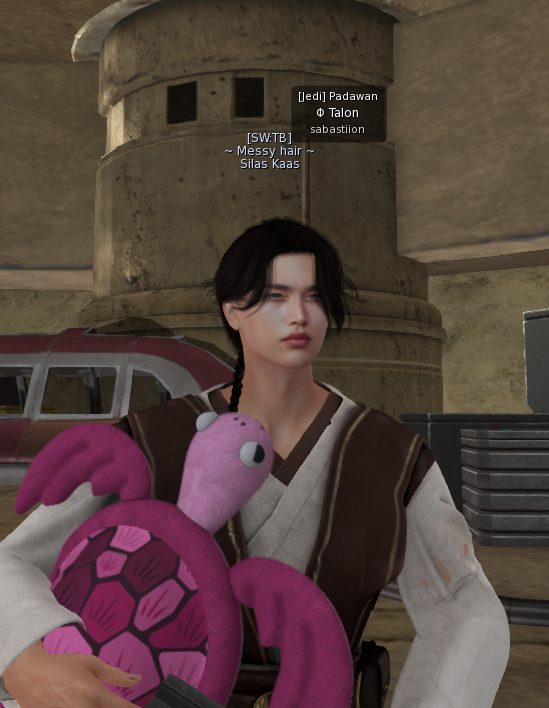
The RP Tool puts your character's name over your head and lets you talk as your character. Talking in character is also one of the ways you earn XP.
Talking in character
Type /3 before your message, for example /3 walks over to the counter and waves. It posts under your character's name.
Some rooms are private, like homes, business back rooms and hospital rooms. Inside one, your /3 is only heard by people in the same room, and you get a message when you walk in or out.
RP earns XP over time while you are taking part in a scene with someone else nearby. See How XP is earned for how it works. We never save what you say. We only note when a post was made, so we can tune how long a scene lasts. Your posts are checked automatically to make sure they are real RP and not gibberish, and keyboard mashing earns nothing.
Status commands (channel 8)
| Type this | What it does |
|---|---|
| /8 afk | Marks you as away. Turn it off by typing it again. |
| /8 ooc | Marks you as out of character. Turn it off by typing it again. |
| /8 ic | Clears both and puts you back in character. |
| /8 look <text> | Adds a short line over your head, like "Smells like bantha". Type /8 look on its own to clear it. |
While you are AFK or OOC you cannot post on /3, and your look line is hidden.
HUD commands (channel 5)
| Type this | What it does |
|---|---|
| /5 help | Lists every command. |
| /5 hub | Teleports you to the HUB. |
| /5 stamina | Tells you how much work you have left in you. |
| /5 effects | Lists your food and drink effects and how long they have left. |
| /5 ticket | Opens a support ticket to the sim team, from anywhere. |
| /5 listings | Shows the homes and businesses for sale. |
| /5 event | Pitch a story event to the story team. |
| /5 changelog | Shows what changed on the sim lately. |
| /5 roll | Rolls a d20 in local chat. |
How money works
Everything on the sim is paid for in credits. There are six main ways to earn them. You can do any of them and switch whenever you want.
| Way to earn | What you need | You have to be there? | Uses stamina? |
|---|---|---|---|
| Jobs | A job terminal | Yes, clocked in | Yes |
| Farming | Seeds and a farm plot | Check in on it | Yes |
| Fishing | A fishing rod | Yes, at the keyboard | Yes |
| Gathering | The right tool | Yes | Yes |
| Mining contracts | Credits to buy one | No, it runs on its own | No |
| Bounty hunting | Join the Bounty Hunters Guild | Yes, you track and fight the target | No |
You spend credits on gear, food, backpack space and tools. Later on, the biggest cost is usually weekly upkeep on a home or business.
Jobs
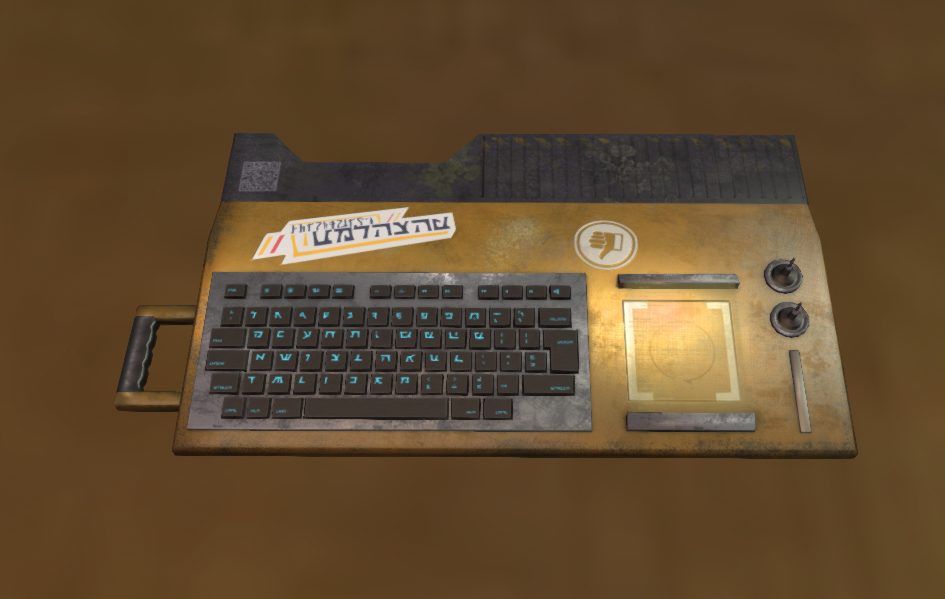
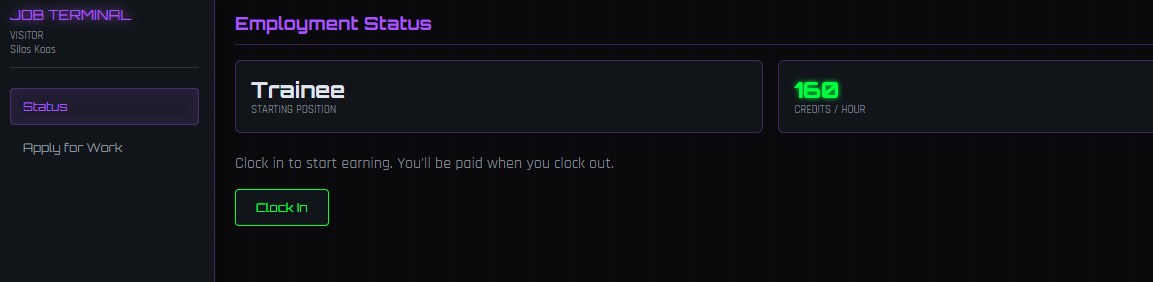
Jobs pay you for time spent working in a business. You clock in at the job terminal, roleplay your shift, and clock out. The more hours you put in, the higher you get promoted and the more you earn.
How to
- Touch a job terminal. The job page opens.
- If the business has an owner, you need to be hired first. Open the Apply for Work tab and send an application.
- Once you are hired, or if the business has no owner, click Clock In on the Status tab.
- Roleplay your shift. Stay near the job site.
- Click Clock Out when you are done. You get paid for the time you worked.
When the business hires you, turns you down, or lets you go, the sim bot sends you an IM. You don't need to keep checking the terminal.
More detail
Promotions
Every job has pay grades, from Pay Grade I up to Pay Grade V. You move up by putting in hours, and each grade pays more per hour. The Promotion tab shows how close you are to the next one.
Your boss can also give you a rank, like Head Chef or Bouncer. It shows over your head while you are clocked in. Ranks are just for RP and don't change your pay. No rank means you show as Employee.
What happens if I log off while clocked in?
You will be clocked out after you leave, and you are paid for the time you worked.
Why did I get clocked out?
Usually because you ran out of stamina. You get paid for what you worked, and you can clock back in after you rest. See Stamina.
Applications need your comm-link
Your application includes your comm signature so the owner can contact you before deciding. Set up your comm-link first. See Comms.
Farming
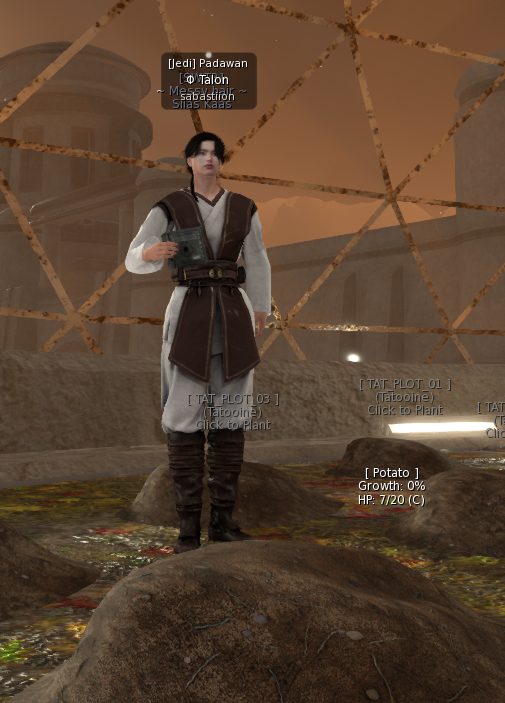
Plant seeds at a farm plot, keep the crop healthy while it grows, then harvest and sell it. A healthier crop gets a better grade, and a better grade sells for more.
How to
- Buy seeds from a shop that sells farming supplies.
- Touch an empty farm plot, then pick the seed in your HUD inventory.
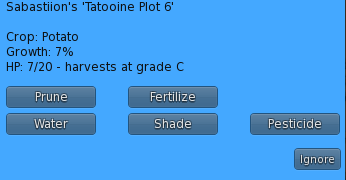
- While it grows, the plot will describe a problem, like dry soil or bugs. Touch the plot and pick the fix: Water, Shade, Pesticide or Prune.
- When it is fully grown, touch the plot to harvest. The crop goes into your backpack.
- Sell it at a shop that buys crops.
More detail
Grades and HP
Crops are graded S, A, B, C, D or F at harvest. The grade comes from the crop's HP. Ignoring a problem, or picking the wrong fix, costs HP. A crop you ignore for too long rots.
Fertilizer
Fertilize only shows up early in the crop's growth. It is the only thing that raises HP, and the only way a shop seed's crop can reach grade S.
Better seeds
Shops sell basic seeds. Use Harvest Seeds on a well grown crop to get seeds that start at a better grade. You keep the crop, so you can still sell it after. Grow your seeds clean and they can come out a grade better, all the way up to grade S.
Fishing
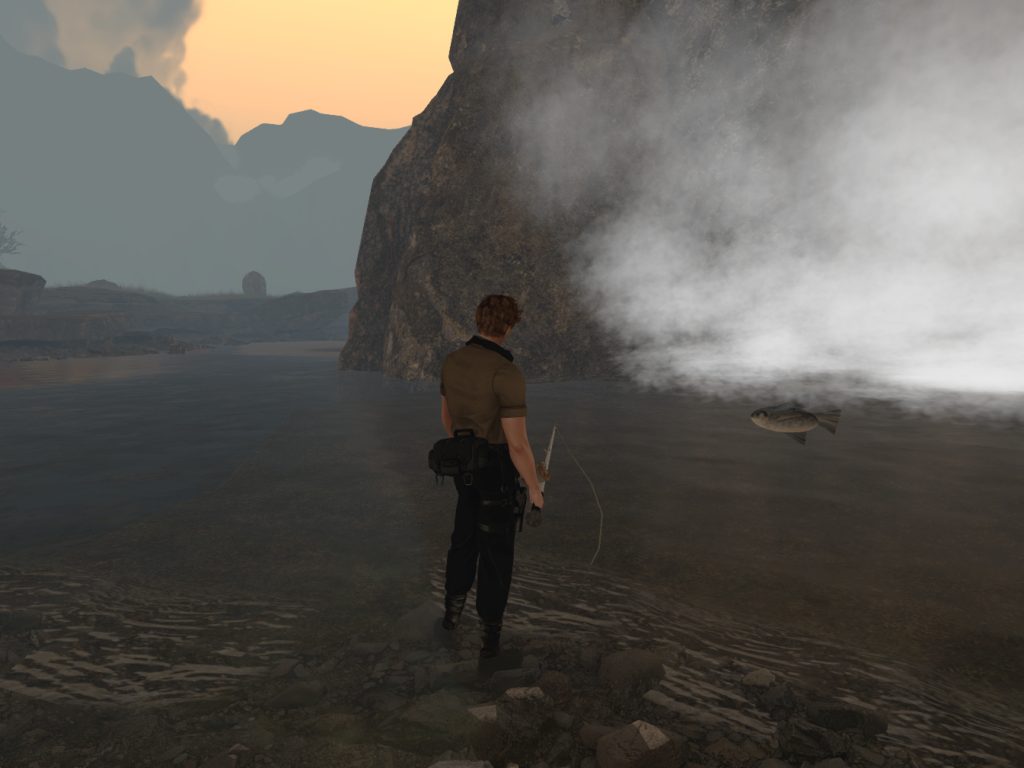
Buy a rod, stand near a fishing spot, and click when a fish bites. You sell the fish at shops. You have to be actively at your computer to catch fish, so fishing does not work while you are AFK.
How to
- Buy a Fishing Rod from a shop that sells tools. Keep it in your backpack.
- Stand near a fishing spot and click Gather on your HUD.
- When a fish bites you get a prompt. Click it quickly or the fish gets away.
- Fish go into your backpack. Sell them at a shop that buys fish.
More detail
Better rods
Copper, Durasteel and Phrik rods get bites faster, so you catch more per hour. Rods wear down as you use them. See Durability.
Fish traps
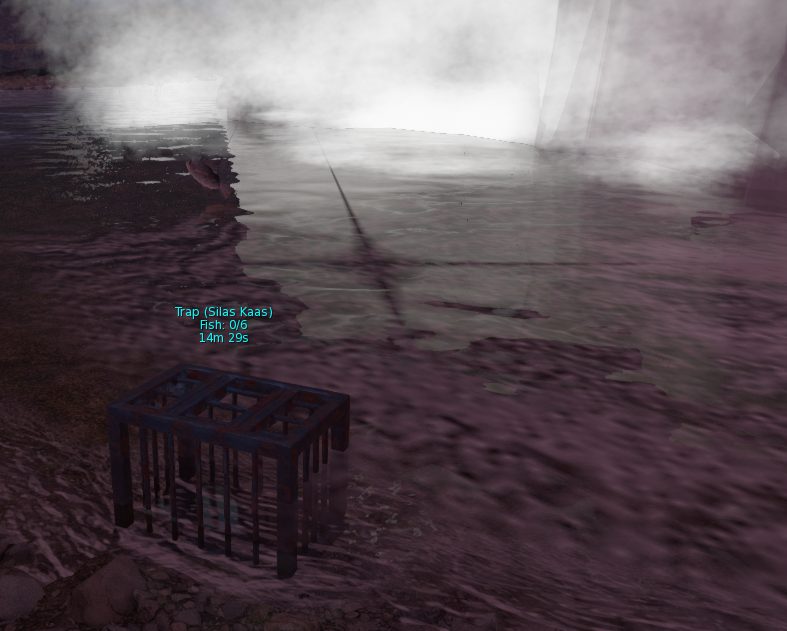
Buy a fish trap, click it in your inventory and pick Use near water to set it. Come back later and touch it to collect. You do not have to stand next to it while it works.
Resource gathering & refining
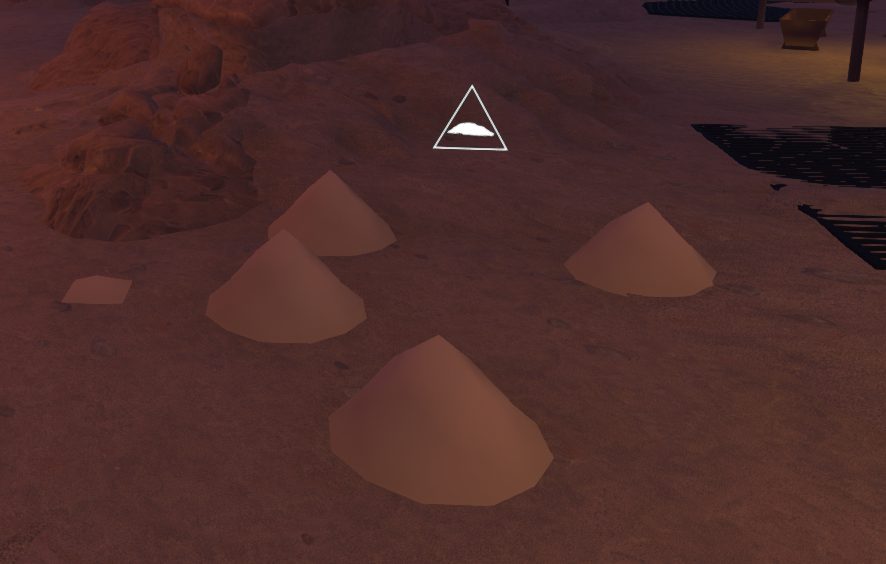
Resource nodes are spots in the world where you collect raw materials like ore or sand. You can sell raw materials as they are, or take them to a refinery to turn them into something worth more.
How to
- Some nodes, like sand and salvaged metals, need nothing. Others need a tool, like a drill for ore or a scythe for crops. Buy the tool from a shop and keep it in your backpack.
- Stand next to a node and click Gather on your HUD.
- Stay close while it works. Materials go into your backpack.
- Nodes run out and come back after a while. Move to another one if yours is empty.
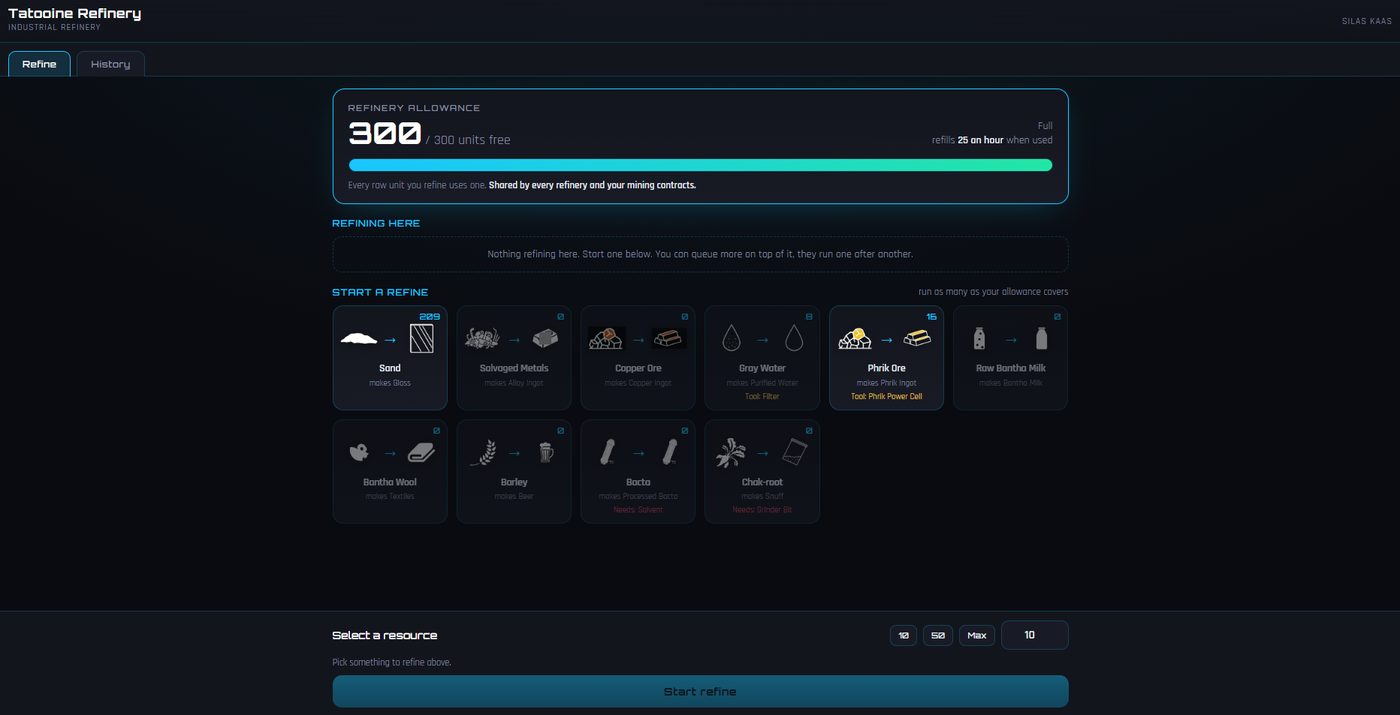
Refining
- Touch a refinery. The refinery page opens.
- Pick a material, pick how much, and click Start refine.
- Come back to the same refinery when it is done and click Collect all ready.
More detail
Node tiers (what's worth more)
Every node is tier 1, 2 or 3. Raw materials sell for next to nothing whatever the tier. The tier matters once you refine: a higher tier refines into something worth more.
| Tier | Materials | What it's like |
|---|---|---|
| Tier 1 | Tatooine: Sand, Salvaged Metals Naboo: Shuura Fruit | No tool needed. Biggest nodes, and they come back fastest. Worth the least. |
| Tier 2 | Tatooine: Copper Ore, Gray Water Naboo: Raw Bantha Milk, Bantha Wool, Barley, Chak-root | Most need a tool. Worth more than tier 1. |
| Tier 3 | Tatooine: Phrik Ore | Needs a Phrik Drill to gather and a Phrik Power Cell to refine. Smaller nodes, slower to gather, and they take the longest to come back. Worth the most. |
Shuura Fruit can't be refined. Sell it as it is.
Sweet spot (gathering with a crew)
Every node has a sweet spot: the best number of people to work it at once. Gathering with others at the same node gives everyone a crew bonus on top of their normal haul.
- The bonus goes up with each person you add, until you hit the sweet spot. At the sweet spot everyone gets +60%.
- Go past it and the node gets crowded. One person too many and the bonus drops to almost nothing. Two or more too many and everyone earns less than they would alone.
- Each node has its own sweet spot, and it can change. The game never tells you the number. Watch your harvest line: when the bonus stops going up, you found it.
- It takes a few minutes for someone new to count toward the crew. Give it a couple of harvests before you judge the bonus.
Your harvest line shows the split, like +5 Copper Ore (4 + 1 crew bonus). The 5 is the total. If it says CROWDED, someone should move to another node.
Refinery allowance
You can only refine so much at a time. The bar at the top of the refinery page shows how much you have left, and it refills over time. Mining contracts use the same allowance.
Walking away from a refinery
A refine waits at the refinery where you started it. You can leave and come back to collect it later. If you walk away while the page is open, it shows a short countdown. Come back before it ends.
Mining contracts
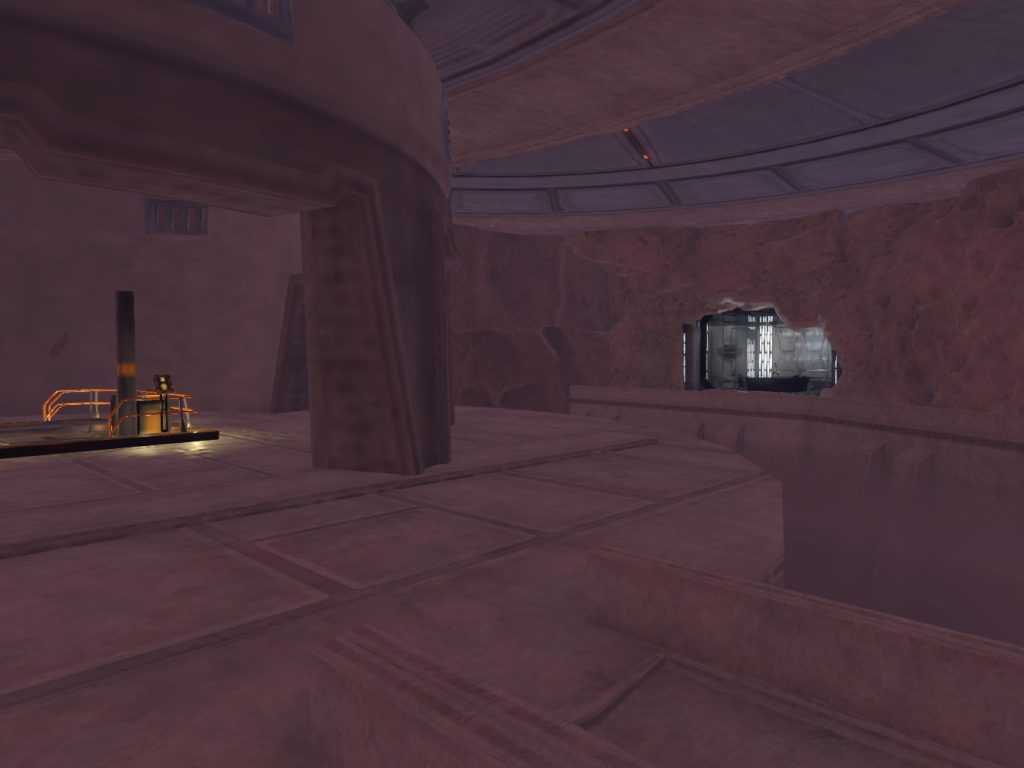
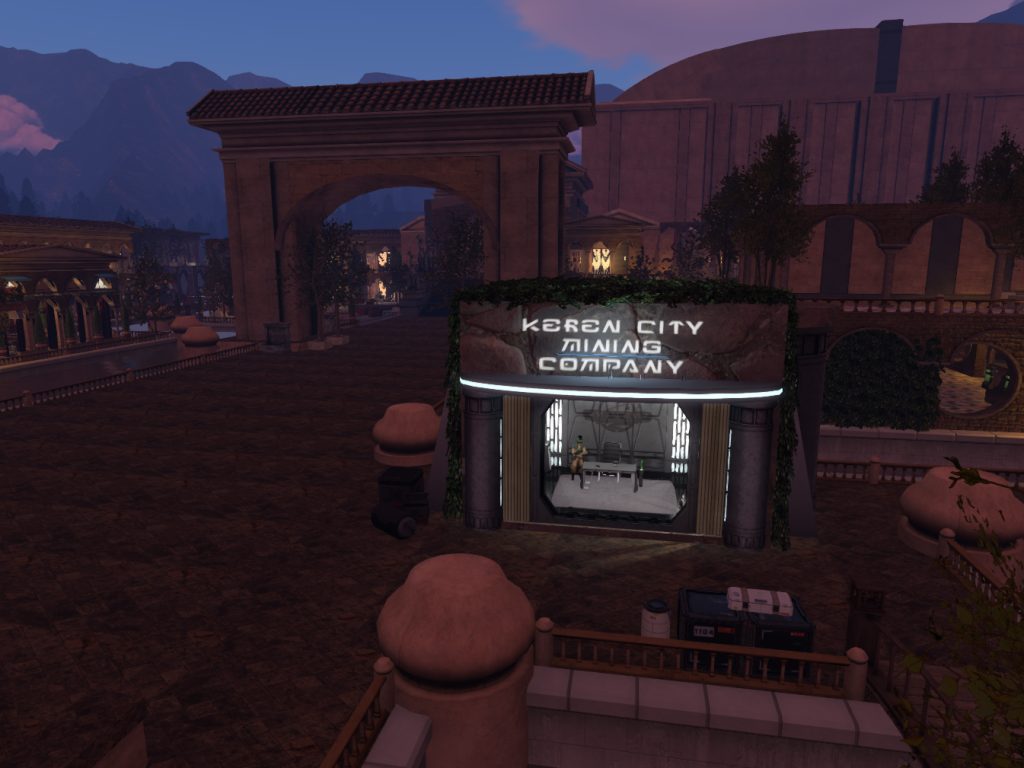
A mining contract pays droids to dig for you. You buy the contract, go roleplay or log off, and come back to collect the result. There is a mining office on each planet. They work the same way and only the setting is different.
How to
- Touch the NPC at the mining office. The office page opens.
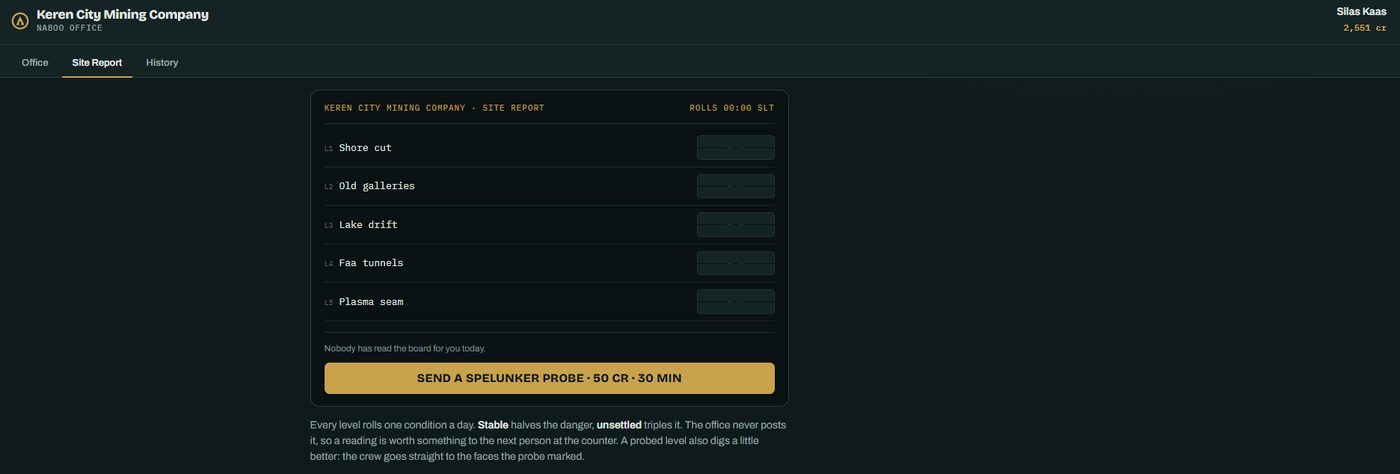
- Check the Site Report tab to see how each level looks today.
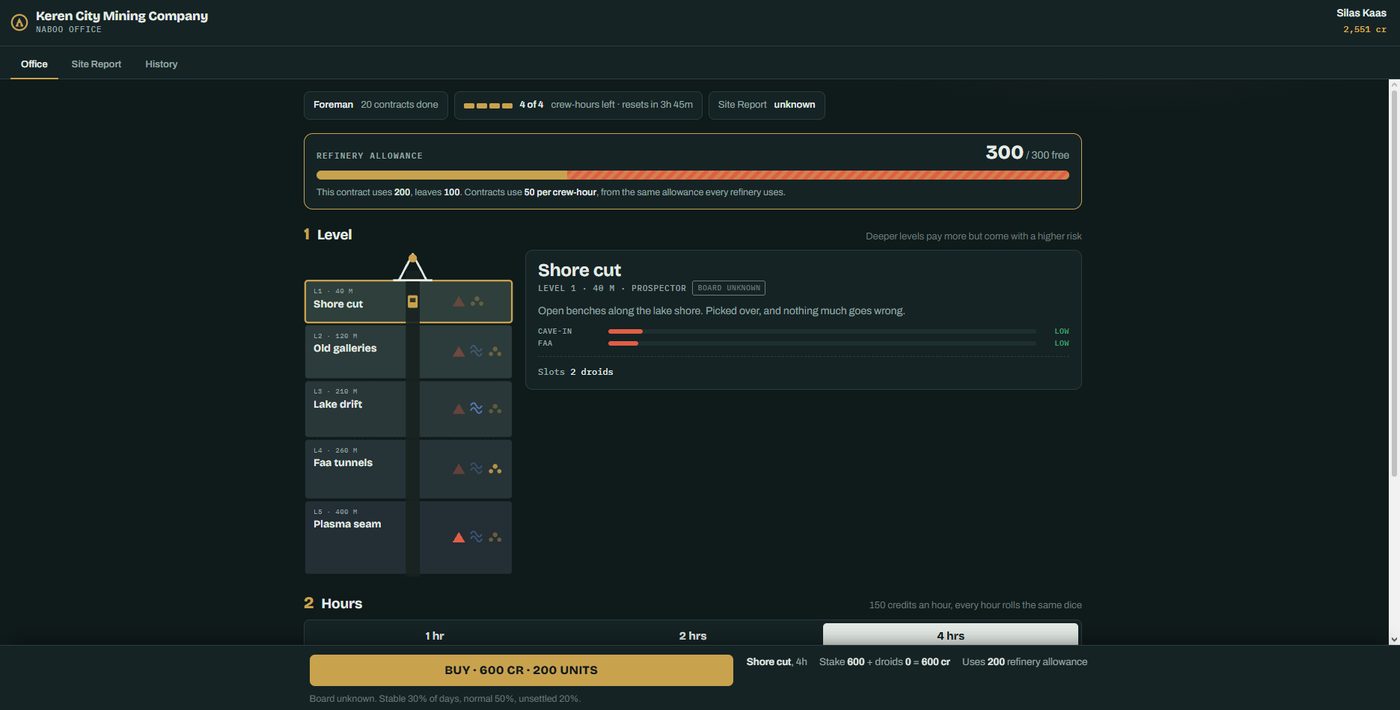
- On the Office tab, pick a level. Deeper levels pay more but are riskier.
- Pick how many hours the shift runs.
- Hire droids for the hazards on that level. Each droid protects against one kind of hazard.
- Click Buy. The shift runs in real time, so you can leave.
- Come back to the office when it is done and collect your credits.
The sim bot IMs you when your contract finishes and when a probe you sent comes back. If you forget to collect, the contract pays you on its own after a week and the bot tells you.
More detail
The Site Report and probes
Every level has one condition per day: stable, normal or unsettled. Stable is safer and unsettled is much riskier. The report is blank until someone sends a probe. Click Send a Spelunker Probe to read today's conditions. A probed level also pays a little better.
Hazards and droids
Each level lists its hazards and how bad they are. Each droid cuts the chance of one hazard. Working out which droids to bring for which level is part of the game.
Cave-ins
A cave-in ends the shift early. You keep what was already dug, and the hours that never started are refunded.
Limits
You can have one contract open at a time, and there is a daily limit on how many hours you can buy. Contracts do not use stamina, but they do use your refinery allowance.
Ranks
You start as a Prospector. Finishing contracts unlocks the deeper levels.
Stamina
Working makes your character tired. Jobs, farming, fishing, trapping and gathering all use stamina. After a few hours of work you need to rest before you can do more.
- You get a message when you are getting tired, and another when you run out.
- When you run out, jobs clock you out and pay you for what you worked.
- Stamina starts coming back once you stop working for a bit. It keeps coming back while you are offline.
- Type /5 stamina any time to check it.
Stamina never affects XP. Mining contracts and combat do not use stamina.
NPC shops
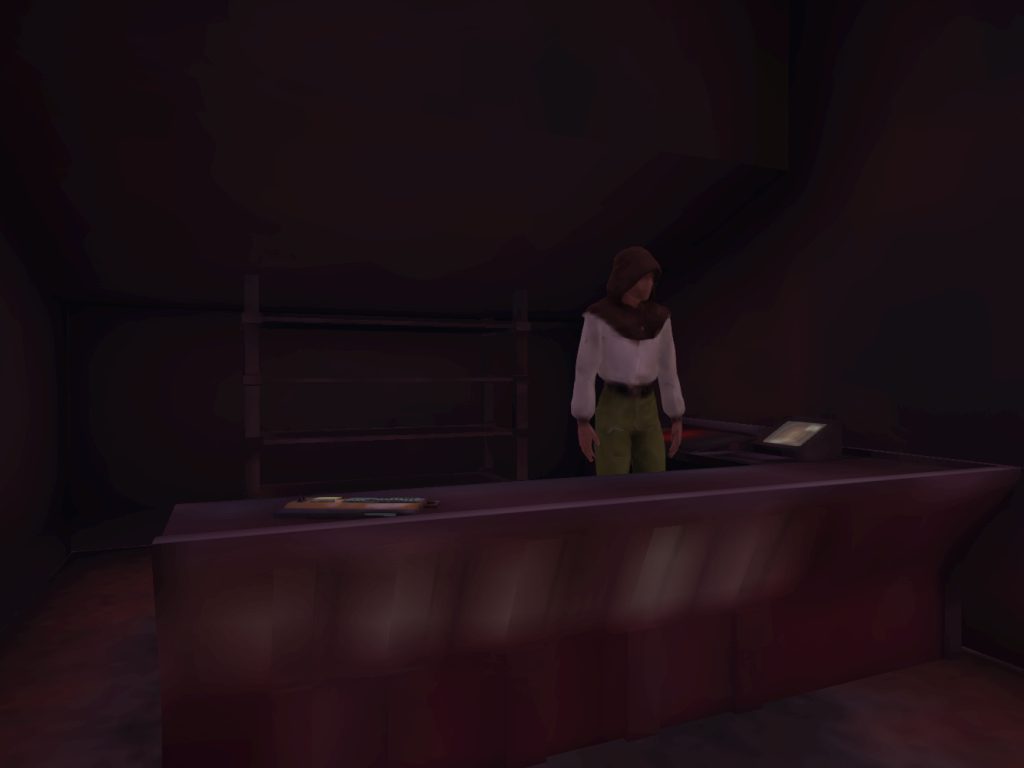
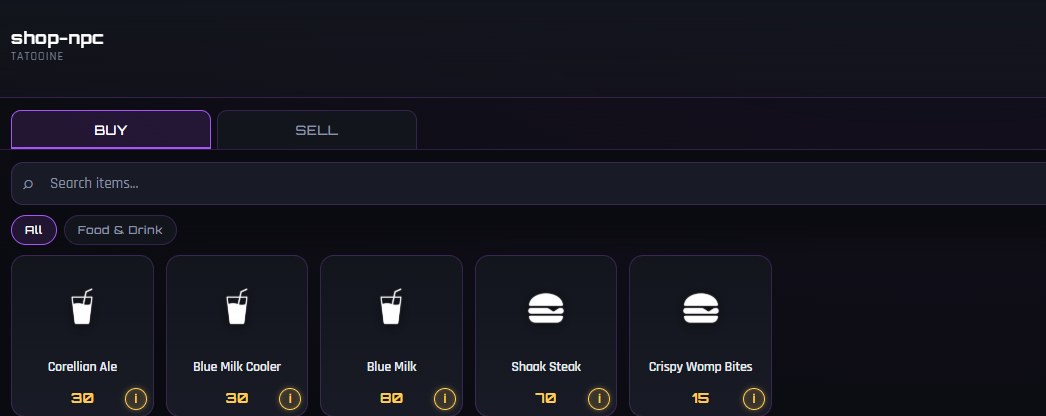
Shops are run by NPC vendors. Touch one to open its shop page. You can buy from it and sell to it. Each vendor sells different things, so if you don't find the item you are looking for, try another shop.
How to
- Touch the vendor.
- On the Buy tab, click Add on what you want. Click Checkout to pay.
- To sell, open the Sell tab and pick what to sell from your backpack.
More detail
The (i) button
Click the small i on any item to see what it does before you buy it.
Backpack upgrades
Every vendor sells backpack upgrades at the top of the shop page. Each upgrade gives you more slots.
Player businesses
Some shops belong to businesses that players own. The owner picks what the vendor stocks, so each one carries something a little different. You buy the same way as at any NPC shop.
Shopping at a player business, and roleplaying there, is how businesses earn credits and build their reputation.
Food, gear & backpack
Food and drink give short boosts. Weapons and armor are what you fight with. Your backpack holds everything, and you can make it bigger.
Food and drink
Click the item in your inventory and pick Use. Some give a boost with a downside, some are just a boost. Click Info first to see what it does. Effects run on a real-time timer. Type /5 effects to see what is active and how long it has left.
Weapons and armor
Buy them at shops, then click them in your inventory and pick Equip. Weapon upgrades are used the same way and make the weapon a higher tier.
Armor comes in light and heavy, and every weapon has its own range. See Armor and weapons in a fight for what each one does.
Durability
Tools, weapons and armor wear out as you use them.
- Tools (rods, drills, scythes and so on) lose durability every time you gather or fish with them.
- Weapons wear when you use them in combat.
- Armor wears when a hit lands on you.
You get a warning when an item gets low. When it hits zero it breaks and is gone for good. Click Info on an item to check its durability.
If you buy something and never use it, a shop takes it back for the full price, so a mistake costs you nothing. Once it has been used, it sells for half what it cost. Tools, weapons, armor and speeders also lose value the more worn they are. A storage crate or fish tank counts as used the first time you set it down. The shop's Sell tab marks each item new or used.
We plan to add repair shops. For now, when something breaks you need to buy a new one.
Backpack
Your backpack has a limited number of slots. Buy upgrades at any vendor to get more. If you need more room than that, see storage crates under Other things to do.
Real estate
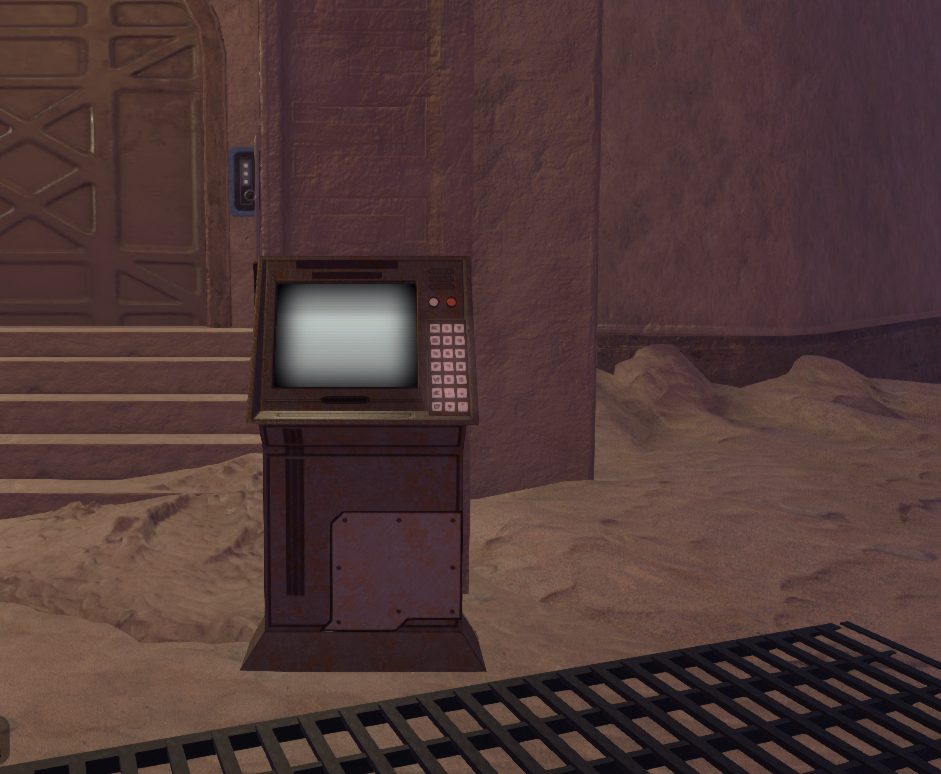
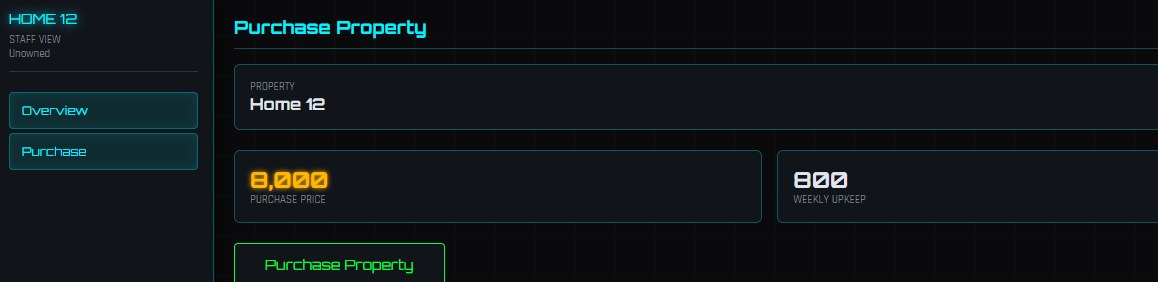
You can buy a home on the sim. You pay the price once, then weekly upkeep after that. At your home you can rez your own things and choose who is allowed in.
How to
- Find a property that is for sale and touch its terminal. To see everything for sale, type /5 listings or check the For Sale page.
- Check the price and the weekly upkeep, then click Purchase Property.
- Put credits in the property's bank on the Banking tab. Upkeep comes out of it every week.
- Add people you trust on the Whitelist tab.
If the property's bank can't cover upkeep, you have a short grace period to pay. After that you are evicted. You lose the property, and any crates or fish tanks on it are taken along with everything inside them.
The sim bot IMs you when your property is short on upkeep, so you have time to top it up. It also messages you if you are evicted.
More detail
One home or one business per person
Each real life person can own one home or one business, not both. This counts across all 3 of your characters and all of your Second Life accounts.
Rezzing your things
The Rezzing tab covers what you can put down at your property. To rez in Second Life you may need to join the land group. Request an invite from your terminal.
Selling your home to another player
Use List Property to put it up for sale. When someone buys it, you get 3 days to move out. Click Move Out Now if you are done sooner. The bot reminds you when less than a day is left.
When time runs out, your crates and fish tanks come back to your backpack with everything inside. Any other Second Life objects you left out are returned to your Second Life inventory. Clean up before your time is up.
Builders
You can let other players build at your home or business. Open the Builders card on the Overview tab, type a character name, and pick how much of your land impact to give them. They can rez there, and their objects count against what you gave them, not against yours.
Each player can be a builder at only one place, on top of their own home or business. This goes by Second Life account, so your alts share that one spot.
Giving up your home
If you want out and don't want to sell, use Abandon on the Sell tab. The place is gone for good, and so is everything stored in its crates, so empty them first. It asks you to confirm.
Running a business
A business is a building you own with a job terminal and an NPC shop vendor. You hire staff, pick what the vendor sells, and keep the business bank topped up for upkeep. This is a short overview.
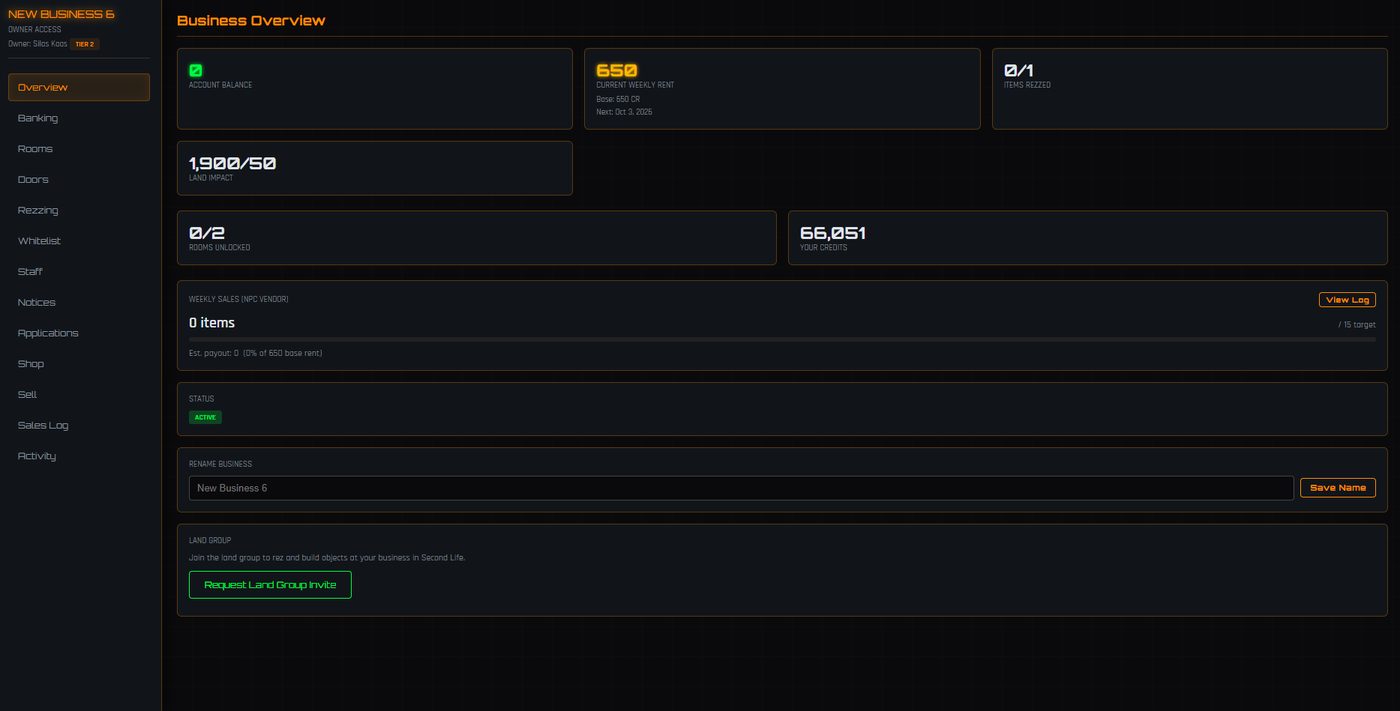
- Buying: touch the business terminal and click Buy Business. The same one-per-person rule as homes applies.
- Staff: people apply from your job terminal. Hire or fire them on the Staff and Applications tabs.
- Staff ranks: make up your own ranks on the Staff tab and hand them out. They show over your staff's heads while they work. Ranks are titles for RP only, pay comes from their pay grade. You can pick a title for yourself too, or give someone the Manage Ranks permission to handle it.
- Your shop: pick what your vendor sells on the Shop tab. You can change the stock once a day, and you get more slots as your reputation grows.
- Notices: leave notes for your staff on the Notices tab.
- Doors, whitelist and rezzing: control who gets in and what goes where.
- Banking: upkeep comes out of the business bank every week, same as a home.
Making money with a business
Every item a customer buys from your shop's vendor counts as a sale. Once a week, on upkeep day, your sales pay out into the business bank:
- Your first sales pay your rent. Hit the target and your customers cover your upkeep for the week.
- Sales after that are profit, up to a weekly limit.
Example: a 1-star shop with 450 CR upkeep.
| Sales | Result |
|---|---|
| 10 | Half your rent covered |
| 20 | Rent fully covered |
| 40 | Rent covered + 500 CR profit |
Business Reputation
Your reputation (1 to 4 stars) sets how much profit you can make each week, and how much your vendor can stock. A 4-star shop can earn several thousand CR a week.
Every new star gives your vendor more shelf space, so you can sell more kinds of items. Your Shop tab shows the extra slots and when they open.
You earn stars by roleplaying in your shop. Any RP there counts, staff or customers. New customers coming in to RP help the most. Sales have to keep up too, but RP is the main thing. Each new star takes a few months of steady effort, so you can't rush it.
Your terminal shows how your week is going and what to work on.
Buying a business from another player drops it one star. Losing a star shrinks the shelf too, so the newest item you added comes off.
XP & skill tree
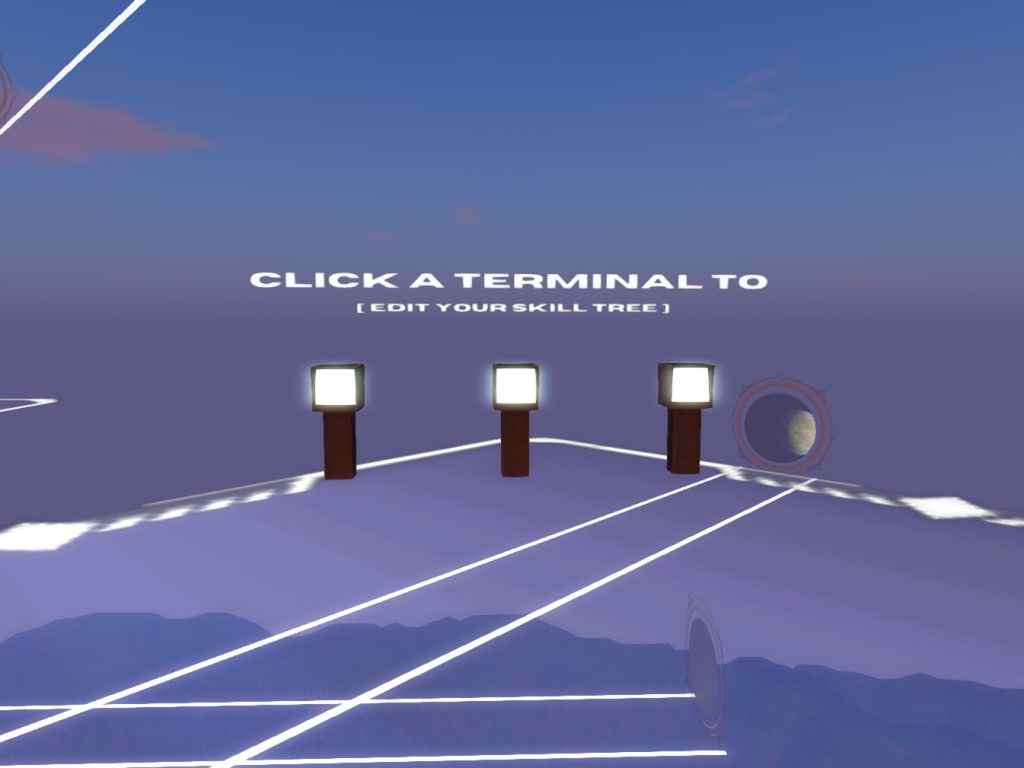
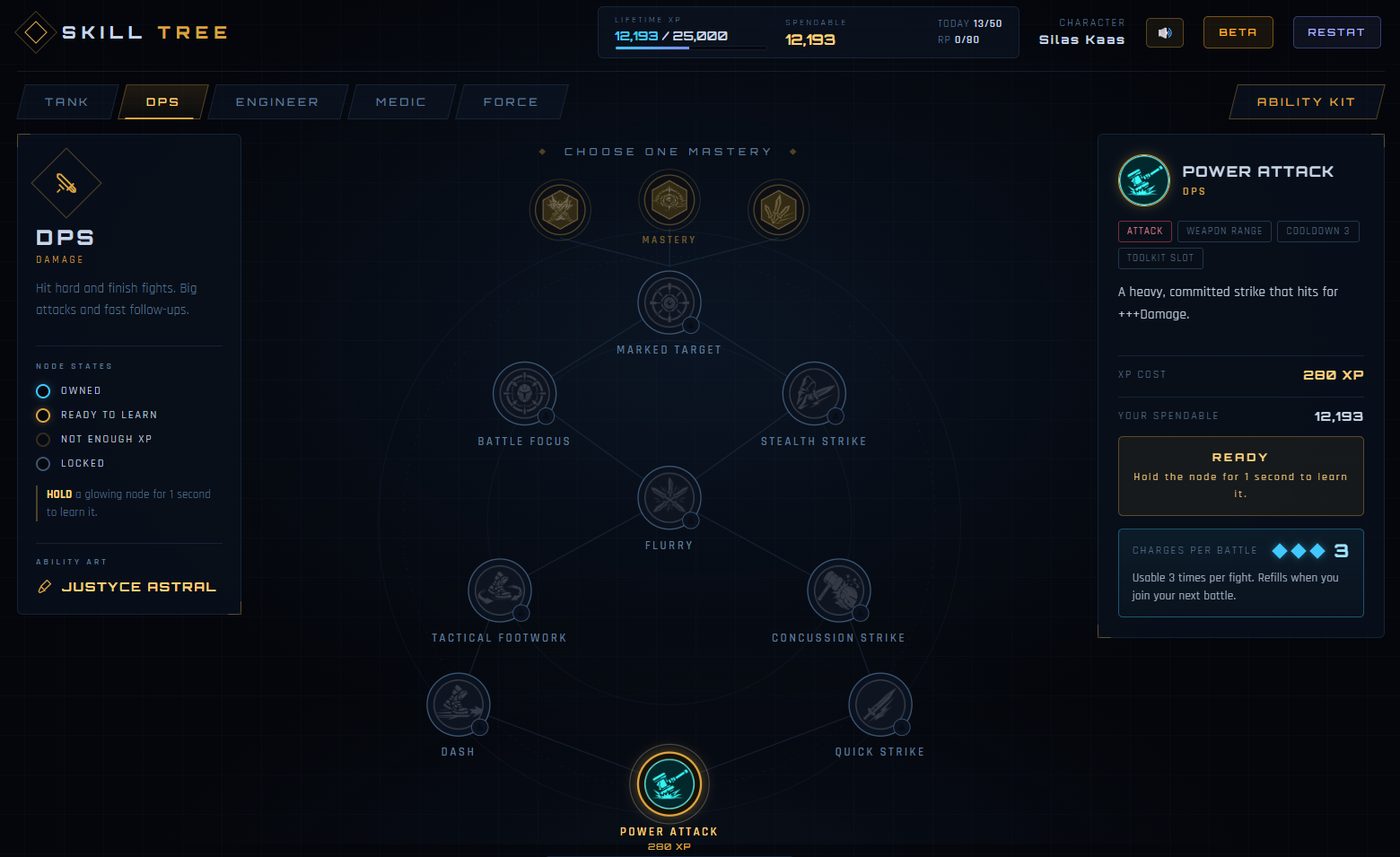
You earn XP by being on the sim and active, and you earn more by roleplaying on /3. You spend XP on abilities at a skill tree terminal and take those abilities into combat.
How to
- Touch a skill tree terminal at the HUB.
- Pick a tree along the top, then click an ability to read it.
- If you have enough XP, hold the ability for a second to learn it.
- Open Ability Kit and put the abilities you want to use in fights into your kit slots.
More detail
How XP is earned
There are two kinds of XP, and each has its own daily cap. Combat does not give XP.
Trickle XP comes in slowly while you are on a planet doing things and not AFK. Moving, using terminals, working, fishing, fighting and roleplaying all count. You do not earn it at the HUB.
RP XP is the bigger one. You earn it over time while you are taking part in a scene on /3. You are in a scene when you have posted lately and so has someone else near you. While you are writing your reply, you are still in the scene, so take your time on a good post. Standing still never matters. If everyone stops, or you walk away, the scene ends for you until you post again.
In a big scene you wait longer for your turn, so the bigger the scene, the longer you can go between posts and still count. A class with lots of people earns the same as a 1-on-1.
Private rooms count as their own scene. People on the other side of the wall cannot hear you, so they are not part of it. Going AFK stops RP XP too.
Your first ability
New characters start with some XP, so the first ability comes quickly. You get a reminder when you can afford one.
Combat basics
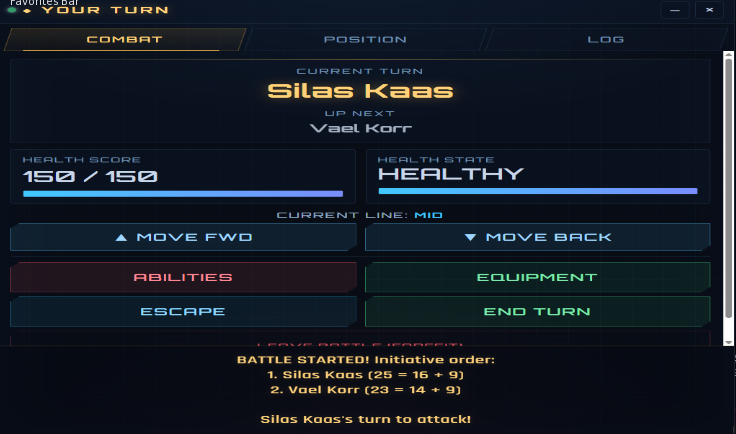
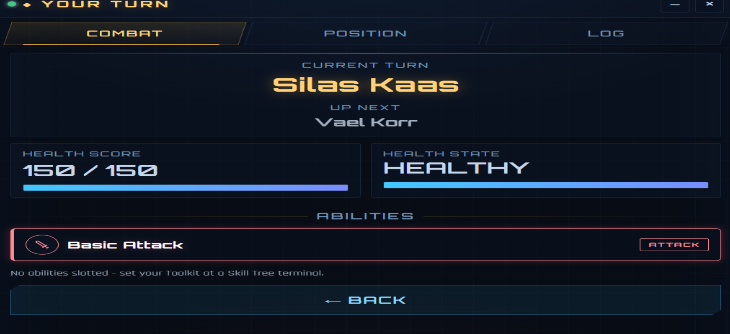
Combat is turn based and runs in a window on your HUD. You take your turn, then write a roleplay post describing what happened. This is a quick look. The full guide goes into detail.
How a fight works
- Click Combat on your HUD, then Open Combat.
- Create a battle or join one near you. The battle starts when everyone is ready.
- On your turn you can move forward or back, use an ability, change equipment, or try to escape. Then click End Turn.
- When someone attacks you, pick Defend or Counter.
- After your turn, write one roleplay post in local chat covering what happened, then click Done.
Other ways into a fight: hunting a bounty target, or watching someone else's battle with Spectate.
Fighting other players? There is a limit on how outnumbered a fight can be, and the smaller side gets a boost. Read the rules for fighting other players before you start one.
Your combat stats
Every character has the same five stats, and they all start at the same level. Skill tree abilities raise them. Armor, food and some abilities can push them up or down.
| Stat | What it does |
|---|---|
| Damage (DMG) | Adds to how hard your weapon hits. |
| Accuracy (ACC) | Your chance to land a hit, or a counter. Every weapon aims with this. |
| Agility (AGI) | Dodging attacks, going earlier in the turn order, and slipping out of counters. |
| Defense (DEF) | Takes a set amount off every hit that lands on you. |
| Willpower (WIL) | Powers Force abilities. If you don't use the Force, you can ignore it. |
How a hit works
- The attacker's Accuracy is rolled against your Agility. If you win, you dodge.
- If it lands, the damage is their weapon plus their Damage, minus your Defense.
- Defense can shrink a hit a lot, but a hit that lands always does something.
Defend or Counter?
Defend is the safe pick. You get your normal chance to dodge.
Counter is a gamble. You skip your dodge and swing back. If it lands, they take the hit. If it misses, you take their hit with no chance to dodge. It works best against slow targets, and only if your weapon can reach them. Your Accuracy decides whether a counter lands, so things that boost Accuracy help here too.
Armor and weapons in a fight
Armor is a trade. Light and heavy are worth about the same. They just play differently.
| Armor | Stats | How it plays |
|---|---|---|
| Light | +AGI, -DEF | Harder to hit and you act earlier, but hits that land hurt more. |
| Heavy | +DEF, -AGI | Easier to hit and you act later, but each hit does a lot less. |
Each armor comes in T1, T2 and T3. Higher tiers have a bigger bonus and a bigger penalty. You buy each tier as its own item.
Weapons differ in two ways: how hard they hit, and how far they reach. Weapon upgrades add damage.
The field has three lines on each side: Front, Mid and Back. Everyone starts in Mid. Moving forward brings you closer to the enemy, moving back takes you farther.
| Weapon | Hits | Reach | Info |
|---|---|---|---|
| No weapon | Weakest | Only when you're both in Front | Get a weapon. |
| Vibroblade | Medium | Mid to Mid | Full damage at any distance it can reach. |
| Light Blaster | Medium | One line past Mid | A little weaker at its farthest. |
| Heavy Blaster | High | One line past Mid | Strongest up close. Loses power the farther away the target is. |
| Sniper | Highest | Anywhere | Weak up close. Stay back. |
If a target is out of your reach, the combat window shows Out of range and you can't pick them. Move closer first.
Armor only counts while it's equipped. Click Info on any weapon or armor to see what it does.
The full combat guide is coming soon.
Getting hurt
Fights cost HP, and losing one leaves you wounded. HP comes back slowly on its own. A wound does not, so you need a hospital for that.
- HP comes back a little at a time, even while you are offline.
- Wounded means you lost a fight. While you are wounded you do worse in fights, and a Stimpack will not heal you.
- Stimpacks heal you in or out of a fight. Use one from your HUD inventory. They cannot fix a wound.
- Training fights never cost you HP or leave a wound.
Hospitals
There is a hospital on Tatooine and one on Naboo. They heal you to full and fix wounds.
- Touch the check-in terminal in the hospital lobby and click Check In.
- Pick a treatment. The public ward is free. Paid rooms are faster.
- Go to the room you are given and lie on the bed. If every room is full, wait in the lobby until your name is called.
- Stay in the hospital until your treatment is done. If you leave, it ends early.
The worse shape you are in, the longer treatment takes and the more the paid rooms cost. A hospital can only fix one wound a day. If you are already at full health with no wound, there is nothing to treat.
Groups & the XChange
Groups are crews, gangs, companies and clubs run by players. The XChange is where you find them. Joining one is the easiest way to meet people, get shown around and always have someone to RP with.
Finding a group
- Go to the XChange in the city on Tatooine or Naboo and touch it. It opens in your web browser.
- Browse the groups. Each one has a page that says what they are about, what they are looking for, and when they were last active.
- Open groups have a Join button that lets you straight in. Others have Apply to join and the leader decides. Some are invite only.
What a group gives you
- Group chat. A Group tab on your comm-link to talk with everyone in it.
- A tag. Your group's tag can show on your RP Tool under your title. Use
/8 TAGto pick which group shows, or/8 TAG OFFto hide it. - A shared bank. Members can pay credits into the group.
- A base and a vault. A group can make a player business its base and buy a shared vault there for items that belong to the group.
You can be in a few groups at once, but lead only one. Your faction counts as one of them.
Starting your own
Anyone can found a group at the XChange. It costs credits to start. The leader sets the name, tag, description, pictures, ranks and who can join.
Books & libraries
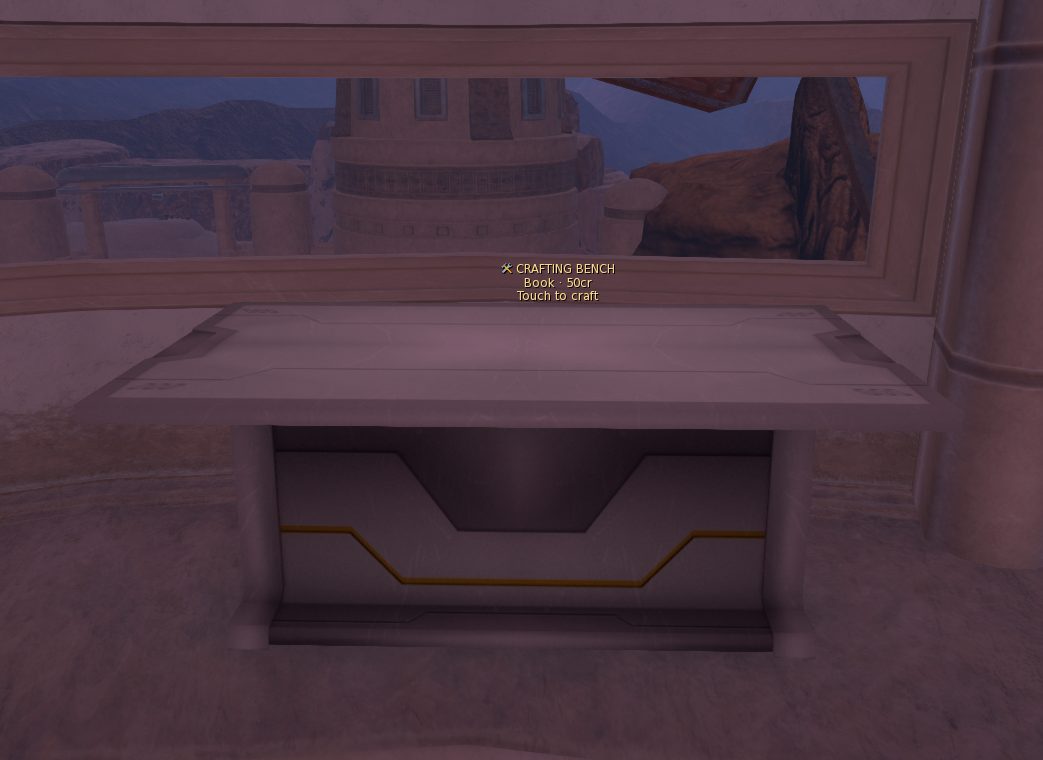
Anyone can write a book at a Crafting Bench. Books sit in your backpack like any other item, and you can trade them. You can give your book to a library so other people can read it.
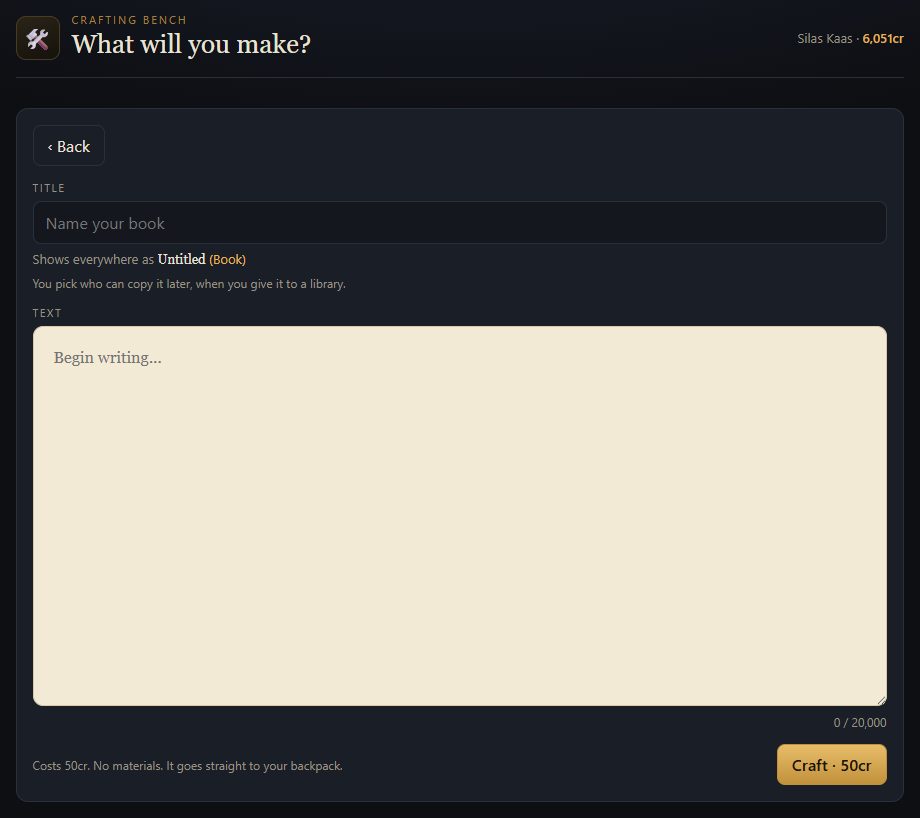
Writing a book
- Touch a Crafting Bench. Stay within about 10m while the page is open.
- Give it a title and write the text. Your draft saves as you type.
- Click Craft. It costs a small fee and the book goes to your backpack.
- To read it, click the book in your inventory and pick Use.
Libraries
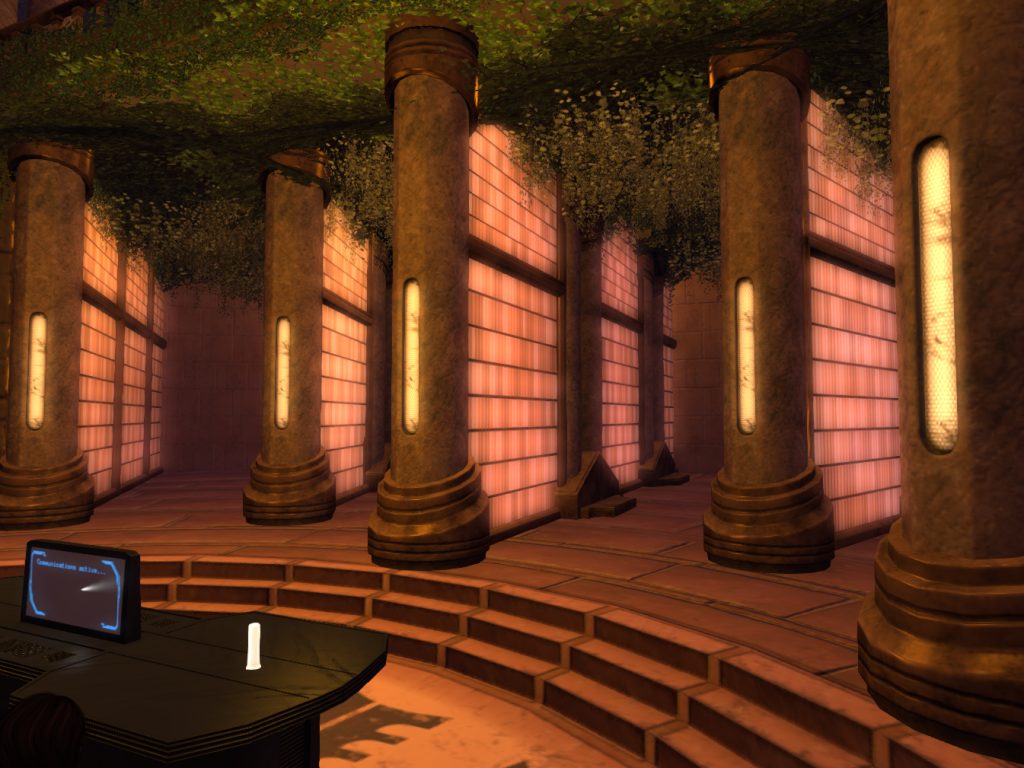
Touch a library to open it. Originals and Copies are the books on the shelves. Click one and pick Read. Library books are read at the library, so stay close. Your books lists the books in your backpack.
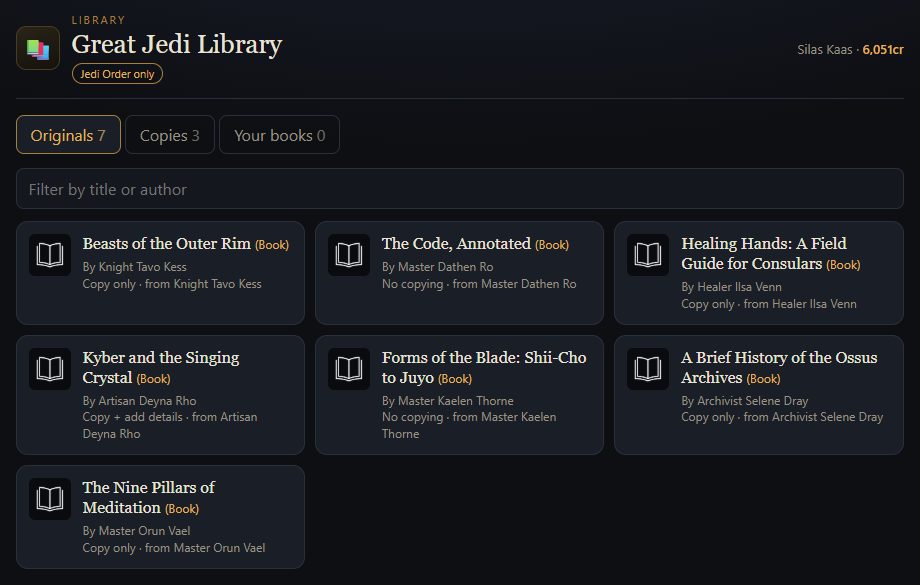
Putting your book in a library
- Donate gives the library your book. It leaves your backpack.
- Submit a copy costs a small fee. The library gets a copy and you keep yours.
- The library's staff reviews every book before it goes on the shelf.
- If they turn down a donated book, click Take it back within 30 days to get it back.
The sim bot IMs you when a library accepts or turns down your book.
More detail
Permissions
When you give a book to a library, you choose what readers may do with it: nothing but read it, make their own copy, or make a copy and add their own details to it. The library card shows which one a book has.
Editing your book
You can edit the title and text of your original with Edit your original. Copies can't be edited by the author.
Restricted libraries
Some libraries are only open to certain groups. The library shows a tag under its name if it is restricted.
Reporting a book
If a book on a shelf breaks the rules, open it and click Report.
Other things to do
A few more systems you will come across.
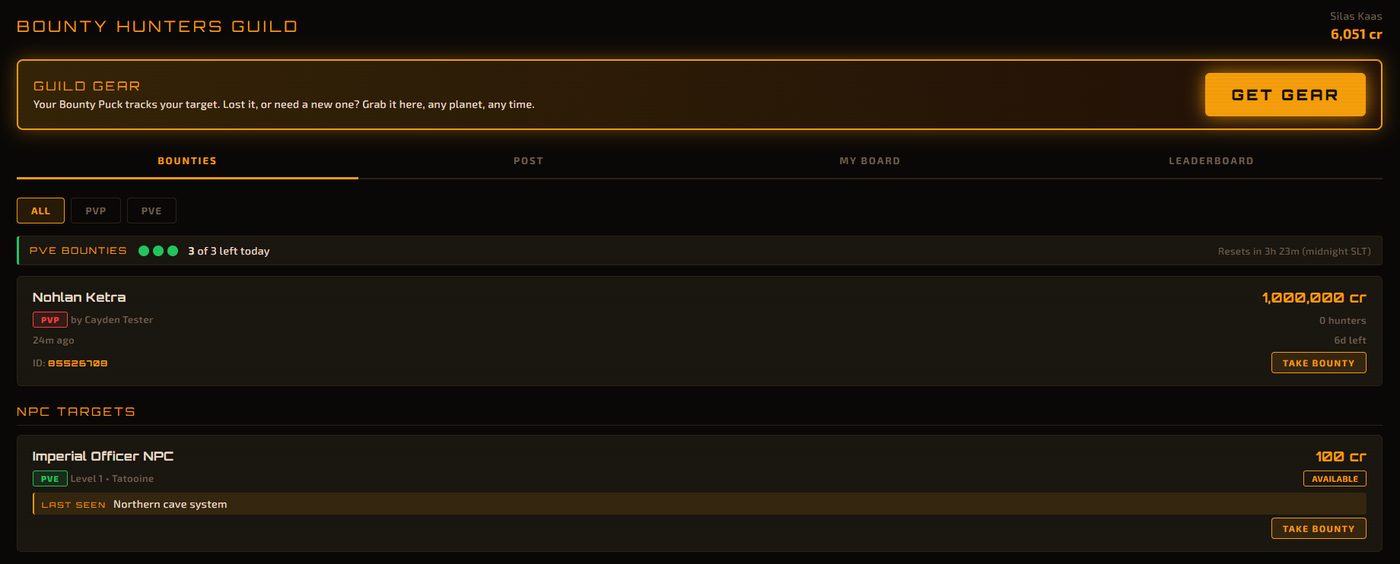
Bounties
Players and NPCs have bounties on them. Join the Bounty Hunters Guild, take a bounty, track the target and bring them in. Guild gear, like the bounty puck that tracks your target, comes from the guild page.
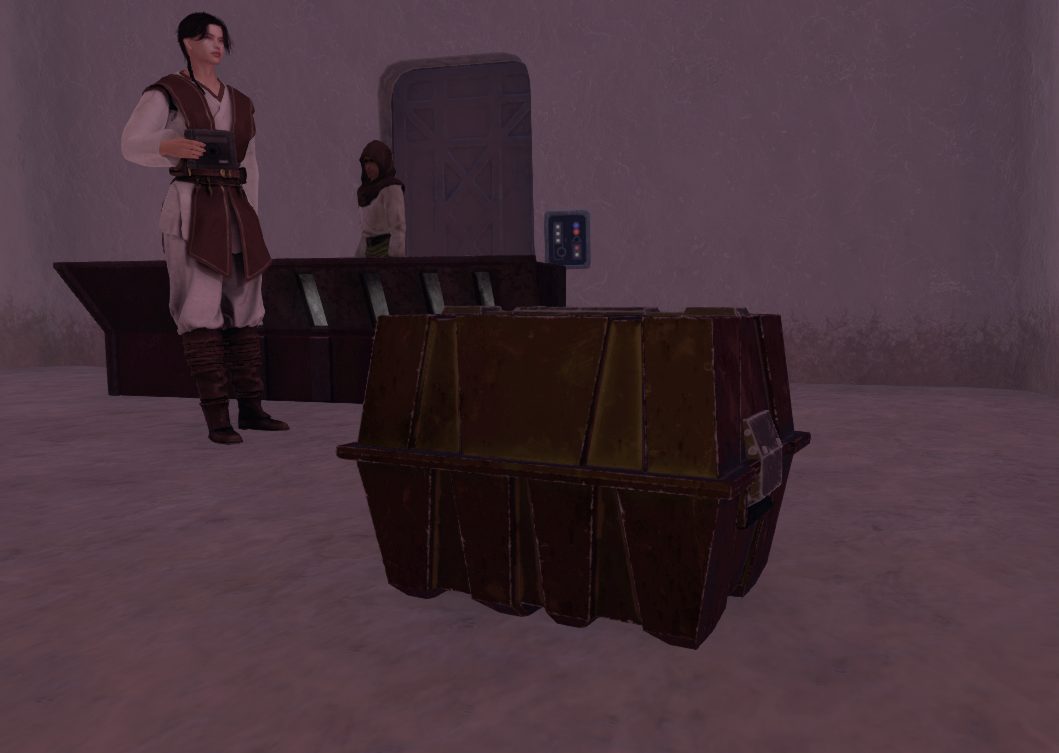
Storage crates
Buy a crate, rez it at your property, and store items in it. Touch it to open its page and move things between the crate and your backpack.
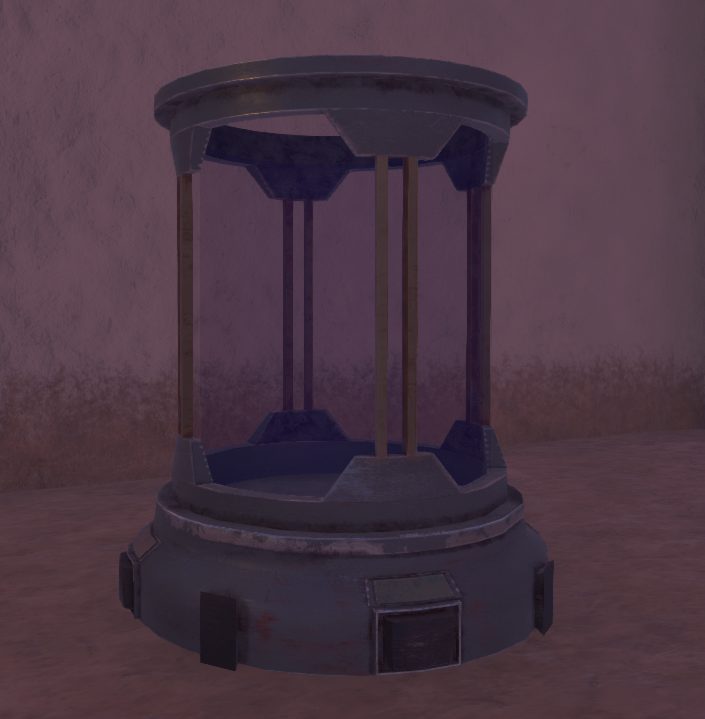
Fish tanks
Buy a tank, rez it at your property, and keep fish in it. You manage it from a page in your browser.
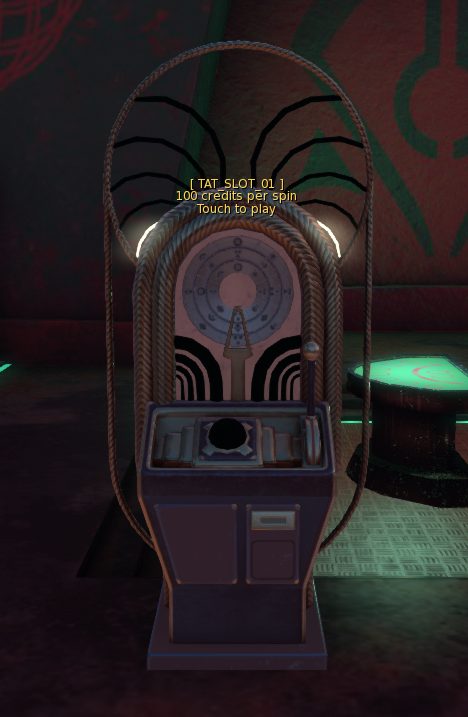
Slot machines
Touch one to play. Each spin costs credits and the sign on the machine tells you how much.
Help & the sim bot
If something is broken or you need the sim team, type /5 ticket from anywhere on the sim. That opens a support ticket. You do not need to find a terminal or wait for someone to be online.
Support tickets
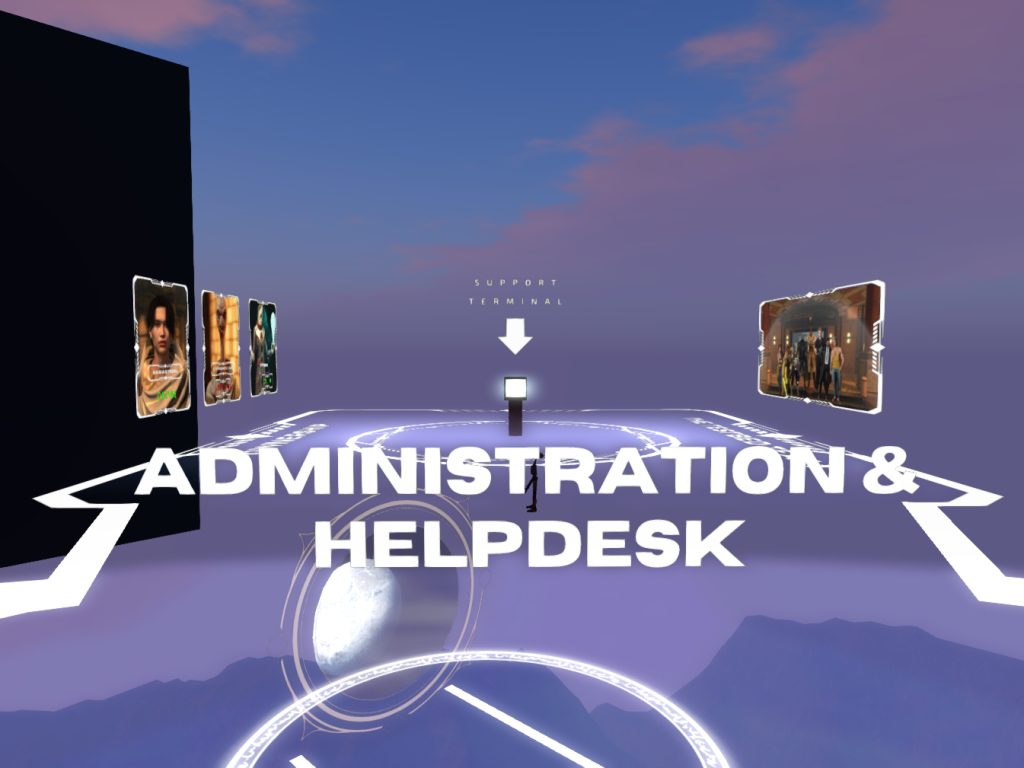
- Type /5 ticket, or touch the support terminal at the HUB's Administration & Helpdesk area.
- Describe the problem. Include what you were doing and what went wrong.
- The sim team picks it up. You get an IM when they reply or change its status.
- To read and answer their reply, open the ticket again with /5 ticket or at the support terminal.
The sim bot
The sim bot sends you Second Life IMs about things that happen while you are away. If you are offline, you get them when you log in. You do not have to keep checking terminals. It messages you when:
| Area | You get an IM when |
|---|---|
| Support tickets | The sim team replies, or your ticket is marked in progress, resolved or closed. |
| Mining contracts | Your contract finishes, your probe comes back, or an uncollected contract pays out on its own. |
| Jobs | A business hires you, turns down your application, or lets you go. |
| Property & business | Your upkeep is short, you are evicted, or your move-out time after a sale is almost up. |
| Libraries | A library accepts or turns down your book. |
Other help
- Ask in the Discord.
- Read the sim rules.
- Writing a bio? Read the character creation guidelines first.
Quick fixes
Common problems new players hit, and what to do.
A terminal says I'm on the wrong planet
Terminals only work on your character's current planet. Type /5 hub, then use the HUB teleporter or a transport terminal to get to the right planet.
I can't wear the HUD, or it doesn't do anything
Make a character first at a character creation terminal. Then take the HUD off and wear it again.
My HUD disappeared
It may be minimized. Look for the small SW logo and click it. If you can't find it, type /9 hudshow.
A page is blank or won't load
Check that media auto-play is on, and take off any other HUDs that use media, like the Legacy body HUD. See the note at the top.
A page says I'm out of range
Most terminal pages only work while you stand near the terminal. Walk back to it and the page unlocks.
It says I'm exhausted
You are out of stamina. Take a break. It comes back on its own, even while you are offline. Type /5 stamina to check.
I can't post on /3
You are probably set to AFK or OOC. Type /8 ic.
Something else is broken
Type /5 ticket and tell the sim team what happened.
Comms, trade & ID
Your comm-link lets people find and message you. The trade window lets you swap items and credits safely. Your ID shows who your character is.
Comms
The button turns yellow when you have unread messages.
Trading
Open your inventory and click Trade, then pick the person you want to trade with. When they accept, a trade window opens. Both of you add items and credits and click Lock Offer. Then both click Confirm Trade to finish.
Always trade through the trade window. Handing things over any other way is not protected. For example, leaving items in a crate for someone to take is not protected.
Your ID
Click Profile on your HUD. View ID shows your own card. Show ID offers it to someone near you, and they choose whether to look.